
VPS Tutorials
VS Code Remote SSH to a VPS: Keys, Server Setup and Agents (2026)
Prepare a supported Linux host, verify SSH keys, open the remote workspace and forward development ports. Diagnose server installation and agent failures.
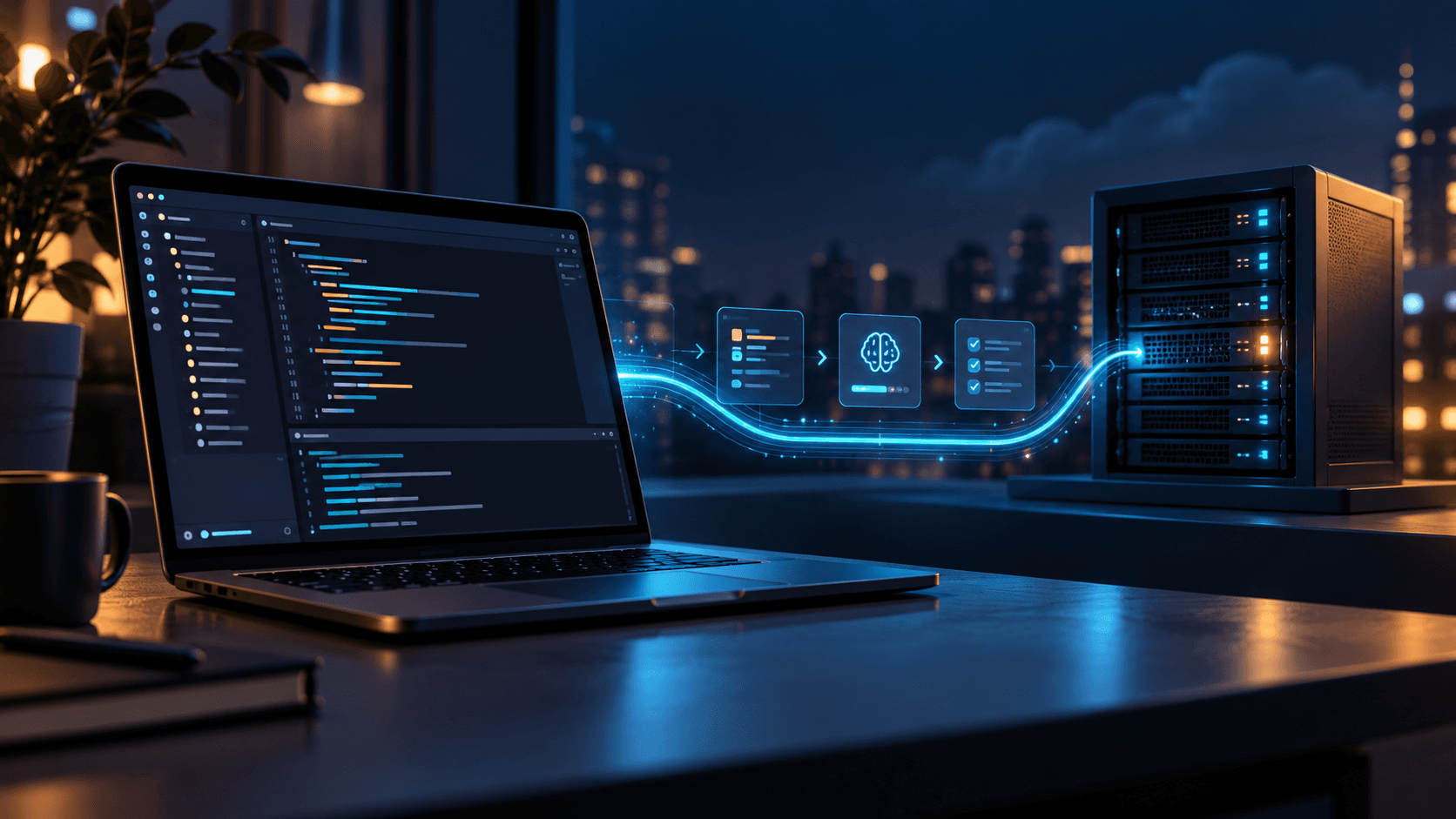
To edit a VPS project in local VS Code and run a coding agent in the same remote directory, you do not need a desktop on the server. Microsoft's Remote - SSH installs VS Code Server over an existing SSH connection. Files, terminals and most workspace extensions run on the VPS; your computer displays the editor. This guide uses Ubuntu and a single developer, including stalled server-installation troubleshooting.
Unlike browser-based code-server, this requires local VS Code and a supported SSH host. Code remains remote. An editor disconnection does not preserve interactive terminal processes; use tmux for long-running agents.
First establish terminal SSH access and inspect the remote system, memory, disk and tools:
ssh [email protected]
uname -m
cat /etc/os-release
free -h
df -h "$HOME"
command -v bash tar curl || true
Replace the user/IP: 203.0.113.10 is a documentation address. The Remote - SSH guide lists at least 1 GB RAM and recommends 2 GB and two CPU cores. Reserve additional capacity for builds, tests and agents. Linux prerequisites include kernel 4.18+, glibc 2.28+, libstdc++ 3.4.25+, OpenSSH Server, Bash, tar and curl or wget. Recent glibc distributions such as Ubuntu 22.04/24.04/26.04 are easier choices; musl-based Alpine is outside this host setup.
Install missing tools in the already connected VPS terminal:
sudo apt update
sudo apt install -y openssh-server bash curl tar ca-certificates git tmux
sudo systemctl status ssh --no-pager
Working SSH needs no port/authentication change merely for VS Code. Verify key access before changing sshd_config, and keep an existing session to avoid lockout.
Run these commands on your own computer, not the VPS. Reuse a dedicated key or check the destination before creating one:
ls -l ~/.ssh/vps_dev ~/.ssh/vps_dev.pub 2>/dev/null || true
ssh-keygen -t ed25519 -f ~/.ssh/vps_dev -C "vps-remote-dev"
Protect the private key with a passphrase; a system SSH agent can remember it. Add the .pub public key to the remote user's ~/.ssh/authorized_keys. On macOS/Linux with ssh-copy-id:
ssh-copy-id -i ~/.ssh/vps_dev.pub [email protected]
ssh -i ~/.ssh/vps_dev [email protected] 'whoami'
Without ssh-copy-id, use the provider's SSH-key facility or append the public output of cat ~/.ssh/vps_dev.pub to ~/.ssh/authorized_keys through an established trusted session. Never upload the private key. Verify the host fingerprint first; investigate reinstall/address changes before accepting a changed key. StrictHostKeyChecking no hides identity problems.
Edit local ~/.ssh/config to create an alias:
Host dev-vps
    HostName 203.0.113.10
    User ubuntu
    Port 22
    IdentityFile ~/.ssh/vps_dev
    IdentitiesOnly yes
Set Port to the real port if different from 22. Test locally before VS Code:
chmod 600 ~/.ssh/config ~/.ssh/vps_dev
ssh -G dev-vps | grep -E '^(hostname|user|port|identityfile) '
ssh dev-vps 'whoami; pwd'
For rejection, inspect the actual user/key using ssh -v dev-vps. Permission denied (publickey) commonly means a key installed for the wrong user, an incorrect IdentityFile, or bad ~/.ssh/authorized_keys permissions. Repeated root-password attempts do not solve it.
Install Microsoft's Remote - SSH extension locally. Use F1 or the command palette, run Remote-SSH: Connect to Host... and choose dev-vps. Wait for VS Code Server installation, then use File → Open Folder for the remote directory, such as /home/ubuntu/app. The lower-left indicator should show SSH: dev-vps.
Run hostname and pwd in the VS Code terminal. The VPS hostname and project path confirm remote execution. Install workspace language extensions where the panel says Install in SSH: dev-vps. UI extensions normally run locally; workspace extensions generally run remotely.
Bind development services to loopback, such as 127.0.0.1:3000, then forward remote port 3000 in Ports and use the displayed local URL. Check whether your framework requires the localhost hostname for its redirect behavior. VS Code may assign a different local port if occupied. No public firewall opening for development port 3000 is needed. See port forwarding.
Confirm pwd identifies the intended project, then start the agent installed under a regular VPS development user. Repository writes and compute consumption are remote; model requests use the tool's service/authentication. Work with a development user and Git branch rather than unlimited access to the production directory.
See Codex CLI remote development or Claude Code on a VPS. For interruptions, start tmux new -s agent remotely and run the agent within it; reconnect with tmux attach -t agent. tmux preserves terminal sessions, not unsaved code, Git commits or backups.
| Symptom | Inspect | Response |
|---|---|---|
ssh dev-vps times out | IP, port, cloud firewall and local network | Confirm provider IP/inbound SSH; VS Code cannot fix underlying SSH |
Permission denied (publickey) | User/key in ssh -v dev-vps and remote public key | Check User/IdentityFile and target user |
| Terminal SSH works, server installation stalls | Output → Remote - SSH, disk and download network | Check df -h "$HOME", then official local-download fallback |
VS Code Server failed to start | Libraries, disk and server logs | Check prerequisites; run Remote-SSH: Kill VS Code Server on Host... and reconnect |
| Hidden prompt/spinner | Passphrase or second-factor interaction | Enable remote.SSH.showLoginTerminal |
| Files open but extension/agent fails | Extension placement, outbound network and memory | Check remote extensions, free -h and dependency endpoints |
According to download troubleshooting, the extension normally tries downloading remotely, then can download locally and transfer. Set remote.SSH.localServerDownload to always to force local download. Some extensions still need remote Marketplace/dependency access. Use official Kill/Uninstall commands and logs instead of deleting all of ~/.vscode-server indiscriminately.
Confirm repeatable local ssh dev-vps, adequate remote df -h "$HOME" capacity and development-port access limited to intended users. For SSH changes, keep a session open and test a second fresh connection first. Separate agent repositories, keys and processes from production accounts.
References: Remote - SSH, Linux prerequisites, remote-development troubleshooting.