
VPS Tutorials
Connect to a Windows VPS with Remote Desktop: login and file transfer
Use Windows Remote Desktop Connection to access your VPS. Check its address, RDP port, account and certificate, transfer files and diagnose connection failures through the graphical client.
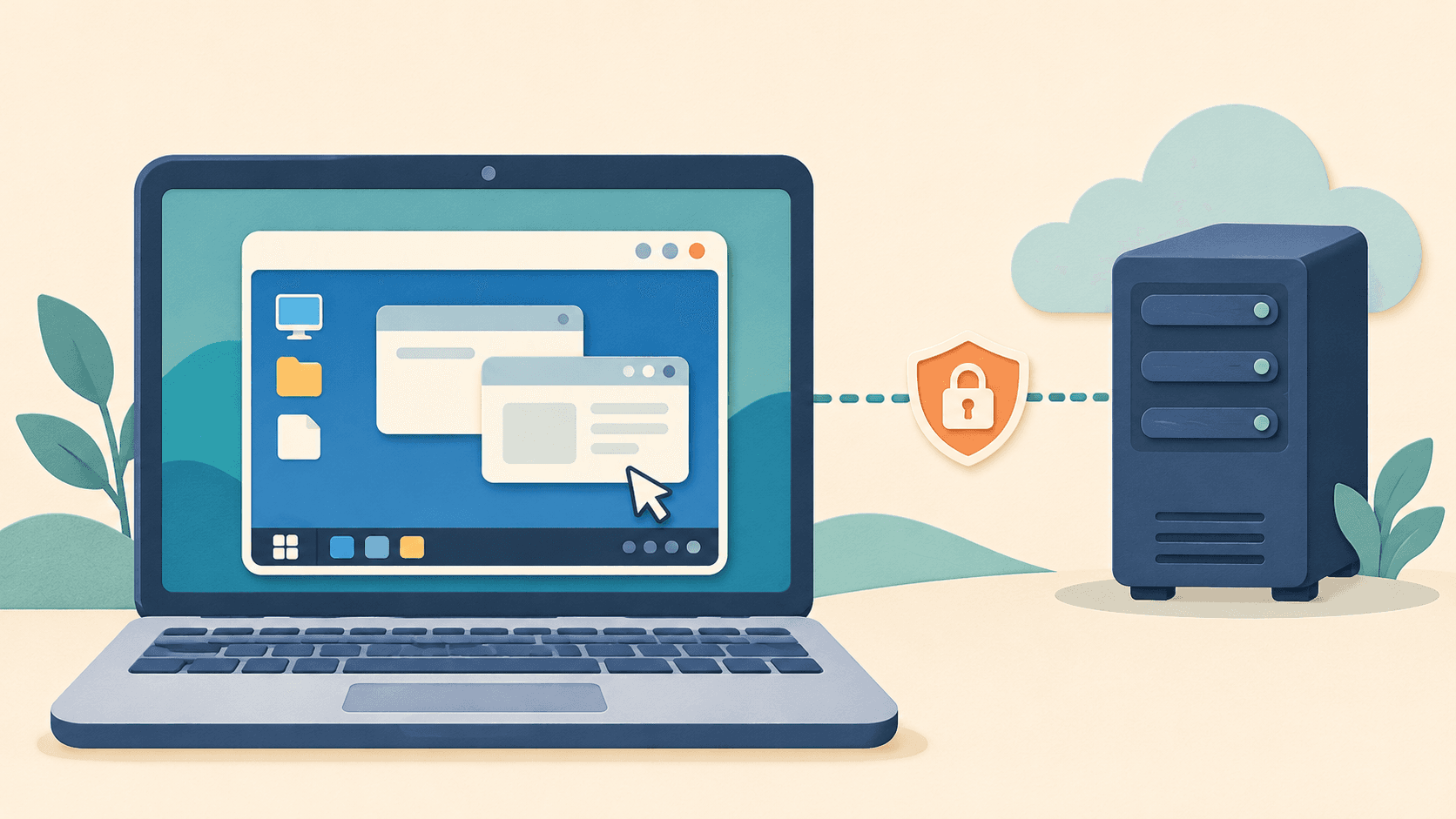
To connect to a Windows VPS, open Remote Desktop Connection on your Windows computer and enter the VPS address, RDP port and server account. The common port is 3389, but use the instance's actual connection details.
This guide is for a beginner with an existing Windows VPS who wants a graphical desktop. It uses Windows 11's built-in mstsc client. The steps are based on official documentation, not a hands-on test of a particular provider's image.
A Windows computer does not imply the VPS also runs Windows. Confirm the server OS in the provider dashboard:
| Actual VPS setup | Appropriate access |
|---|---|
| Windows Server with Desktop Experience and Remote Desktop enabled | Use RDP as described here |
| Windows Server Core | Remote administration is possible, but there is no conventional full desktop |
| Linux such as Ubuntu or Debian | Usually SSH; these RDP steps do not apply directly |
| Still installing, initializing or powered off | Wait for readiness or start the instance first |
Server Core and Desktop Experience are different installation options. Changing display settings does not add a full desktop to Core; see Microsoft's installation-options guide. For Linux, use the Windows-to-Linux SSH guide.
Windows Home can act as the client. Its inability to host the built-in Remote Desktop service is a separate restriction, as Microsoft explains.
Use the instance's activation email or trusted dashboard:
| Detail | Correct value | Common mistake |
|---|---|---|
| Address | Public IP or provider-specified hostname | Provider website or an unreachable private IP |
| RDP port | Often 3389, possibly customized | SSH port 22 or a web port |
| Username | Windows account given for this instance | Provider-account email |
| Password | Password for that server account | Local Windows PIN or dashboard password |
The account is not necessarily Administrator. Do not repeatedly guess that username. Some providers require retrieving or setting the initial password through a trusted console; follow the instance's instructions.
If access requires a VPN or Remote Desktop Gateway, establish that connection first. A private IP alone is not reachable directly from the internet. For public access, restrict RDP in both the cloud security group and Windows firewall to your public source IP. Update the rule when your network changes rather than leaving unrestricted access enabled.
On your own computer, press Win + R, type mstsc and click OK. You can also search Start for Remote Desktop Connection. This opens a graphical client and does not require administrator privileges.
- Enter the server address under Computer. For the default port, the IP alone is sufficient; for a custom port, use
IP:端口. - Click Show Options and enter the real username on General.
- Click Connect and enter the server account's password.
- If your local account is preselected, choose More choices / Use a different account and supply the server account.
203.0.113.10:3390 is a documentation example of a custom-port address, not a server to connect to. Replace it with your own values. Do not add https:// or a website path. The mstsc reference also uses an address with an optional port.
For the first attempt, avoid saving the password or sharing every local resource. Confirm the destination before deciding whether to save settings on your own controlled computer.
A first connection may warn that the remote computer's identity cannot be verified. This is not a password error and does not establish that the connection is safe.
Check the address, inspect the certificate, and compare its fingerprint with information from the trusted provider console or administrator. A familiar IP or a self-signed certificate label alone is insufficient. Cancel and ask the provider if you cannot verify it. Investigate unexpected certificate changes on a known instance before proceeding.
After login, open This PC and system information on the remote desktop. Confirm the computer name and OS version. File changes, installations and shutdowns inside that window affect the VPS; local files with the same name are not automatically synchronized.
You can create a harmless test file in the remote Documents directory, close it and reopen it to verify the location. If an initial password change is required, follow the prompts and store the new password safely.
Complete a login first. Once the server is trusted, disconnect and return to Remote Desktop Connection on your computer:
- Open Show Options → Local Resources.
- Under Local devices and resources, click More.
- Expand Drives, select only the drive you need and reconnect.
- In the remote This PC, find the redirected drive bearing your local computer's name.
- Copy a test file into remote Documents and inspect it. Copy a file back to verify downloads too.
Drive redirection makes the selected local drive accessible to the remote session, rather than sending only one file. Avoid sharing drives containing passwords, private keys or all your work just to transfer a document. Unselect them afterward and reconnect.
For text copy and paste, check Clipboard on the same tab. Server policies may prohibit clipboard, drive or file redirection despite client selections. Ask the administrator to review the policy rather than disabling protections.
| Action | Usual remote effect |
|---|---|
| Close the remote window or disconnect | Connection ends; the session usually remains |
| Sign out inside the VPS | Ends the user's session and its programs; save files first |
| Shut down or restart inside the VPS | Affects the whole instance and can interrupt other services |
Microsoft documents disconnection separately from signing out. Programs continuing after a disconnect also depend on session timeout policies, application behavior and maintenance restarts. Closing the window is not a guarantee of indefinite execution.
| Symptom | Check next |
|---|---|
| Waiting or unable to connect | Instance state, address, RDP port, VPN/gateway, source IP and both firewalls |
| Login prompt appears but credentials fail | Server username/password, saved credentials, lockout and remote-login rights |
| NLA, authentication or credential-security error | Exact message, client updates, account state and server authentication settings |
| Login without a full desktop | Whether this is Server Core; otherwise ask the administrator to inspect session and system health |
| Desktop works but file transfer fails | Local-resource selection, reconnection and server redirection policies |
A timeout normally precedes password checks, so repeated resets are not useful. The provider's web console showing a desktop does not prove public RDP connectivity; they can be separate access paths.
Use the trusted console to inspect Remote Desktop enablement, account permissions and matching firewall rules. The default port is usually 3389; compare custom ports with actual settings. See Microsoft's connection troubleshooting before changing registry entries or reinstalling.
Keep Network Level Authentication (NLA) enabled. It authenticates before establishing the session. Investigate errors rather than treating disabled NLA or disabled firewalls as universal fixes.
For support, provide the instance ID, time, port, redacted screenshot and attempted steps, without passwords. If the goal is everyday desktop work, compare VPS and cloud-PC services for software, peripherals and maintenance requirements.