
Technical Tutorials
Docker Deployment in Practice (2025) - The Ultimate Guide to Containerized Apps on a VPS
An up-to-date 2025 hands-on tutorial on containerized deployment with Docker. Learn how to install Docker Engine and Compose on a Linux VPS with a single command, configure a registry mirror, and follow step-by-step demos deploying the Portainer web UI and an Nginx website.
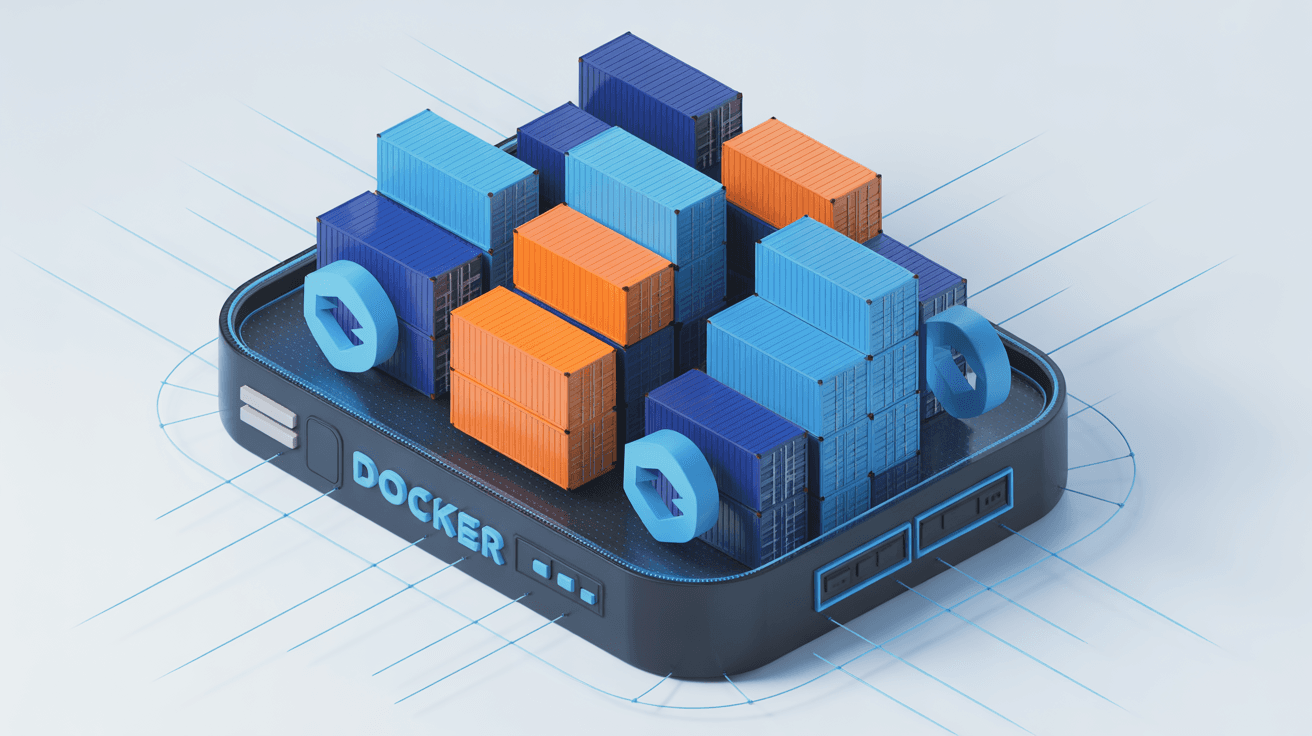
In 2025, Docker is no longer anything new — it is a survival skill for VPS users and developers. Whether you want to spin up a WordPress blog in 1 minute or deploy a complex system with monitoring, logging and a database in 5 minutes, Docker makes these operations as simple as "stacking building blocks."
This article discards outdated knowledge (such as docker-compose) and walks you through installing Docker and Docker Compose V2 on a Linux VPS (CentOS/Ubuntu/Debian) in the most modern, most standard way.
With traditional software deployment (for example, installing MySQL): you need to download source code or an rpm package, manually configure /etc/my.cnf, deal with lib library dependencies, and even worry about breaking the system's built-in Python environment...
The Docker way:
docker run --name mysql -e MYSQL_ROOT_PASSWORD=my-secret-pw -d mysql:8.0
One command and the service is online immediately.
Core advantages:
- Environment consistency: If it runs on my computer, it will absolutely run on your server.
- Isolation: Software does not interfere with each other; when you no longer need it, just
docker rmand delete it, leaving the system clean with no leftover junk files. - Second-level startup: Far lighter than traditional virtual machines; even a 1-core, 1 GB VPS can run several services.
The most recommended installation method today is the official one-line script. It automatically detects your system (Ubuntu/Debian/CentOS) and installs the latest Docker Engine and the Docker Compose V2 plugin.
After connecting via SSH, copy and run the following command:
curl -fsSL https://get.docker.com | bash
After installation, run the following commands to make sure the Docker daemon is running:
systemctl start docker
systemctl enable docker
Check the Docker and Compose versions to confirm the installation succeeded:
docker --version
# 输出应类似:Docker version 27.x.x, build ...

docker compose version
# 输出应类似:Docker Compose version v2.x.x
# 注意:现在是 'docker compose' (中间有空格),不是老的 'docker-compose'
For security, it is recommended to add the current user to the docker group, so you no longer need to type sudo every time you run a command.
sudo usermod -aG docker $USER
newgrp docker
If you are using an overseas VPS (such as RackNerd, Vultr, AWS, GCP, etc.), please skip this step.
In 2024-2025, accessing Docker Hub from mainland China has become extremely difficult, and public mirror sources (such as NetEase and USTC) are often unavailable.
Best solutions:
- First choice: cloud provider internal mirrors (most stable).
- Tencent Cloud VPS: use
https://mirror.ccs.tencentyun.com - Alibaba Cloud VPS: log in to the Container Registry console and get your "dedicated accelerator address".
- Alternative: third-party proxies (due to regulatory reasons, these addresses may become invalid at any time; search for "Docker mirror acceleration 2025" to get the latest list).
https://docker.m.daocloud.iohttps://docker.1ms.run
Configuration method:
Edit the /etc/docker/daemon.json file:
sudo mkdir -p /etc/docker
sudo tee /etc/docker/daemon.json <<-'EOF'
{
  "registry-mirrors": [
    "https://mirror.ccs.tencentyun.com",
    "https://docker.m.daocloud.io"
  ]
}
EOF
(Note: please replace the URL above according to your actual situation)
Restart to take effect:
sudo systemctl daemon-reload
sudo systemctl restart docker
Talk is cheap, so let's run two real applications.
We run an Nginx web server to test.
docker run -d --name my-nginx -p 8080:80 nginx
-d: run in the background (Detached mode).--name: give the container a name for easier management.-p 8080:80: port mapping. Map port 8080 on the VPS to port 80 inside the container.
Now visit http://你的IP:8080 in your browser, and you should see the "Welcome to nginx!" page.
The command line too dull? Portainer is the most popular Docker web management backend.
# 创建数据卷(持久化保存数据)
docker volume create portainer_data

# 启动 Portainer
docker run -d -p 8000:8000 -p 9443:9443 --name portainer --restart=always -v /var/run/docker.sock:/var/run/docker.sock -v portainer_data:/data portainer/portainer-ce:latest
How to access:
Open https://你的IP:9443 in your browser (note it is HTTPS).
On first login, set the administrator password, choose "Get Started", and you can visually see the Nginx container you just ran through the web page!
docker run is suitable for running a single temporary container. If you want to deploy a blog (WordPress + MySQL database), two containers need to work together, and then you must use Compose.
Note: In 2025, we no longer need to write version: '3' at the top of the file; that is an outdated syntax.
Create a directory and enter it:
mkdir my-blog && cd my-blog
Create docker-compose.yml:
services:
  web:
    image: nginx
    ports:
      - "8081:80"
    restart: always

  db:
    image: mysql:8.0
    environment:
      MYSQL_ROOT_PASSWORD: examplepass
    volumes:
      - db_data:/var/lib/mysql

volumes:
  db_data:
Start all services with one command:
docker compose up -d
(Note the command is docker compose, with no hyphen in the middle)
| Task | Old command (not recommended) | New command (2025 standard) |
|---|---|---|
| Start orchestration | docker-compose up -d | docker compose up -d |
| View containers | docker ps | docker ps |
| View all containers | docker ps -a | docker ps -a |
| Stop a container | docker stop <ID> | docker stop <ID> |
| View logs | docker logs -f <ID> | docker logs -f <ID> |
| Clean up junk | - | docker system prune -a (a godsend, use with caution) |
The point beginners most easily overlook: Docker modifies iptables rules.
This means that even if you enable the firewall on Ubuntu with ufw, as long as you map a port in Docker (for example -p 8080:80), the outside world can still access that port directly!
Recommendation: If your VPS is on the public internet, it is recommended to control port opening in your cloud provider's "security group" or "firewall" panel; that is the safest line of defense independent of the system.
Once you master Docker, you hold the "cheat code" for modern operations. Next, you can explore thousands of open-source applications on Docker Hub and deploy your own RSS reader, password manager or private cloud drive with one command.
Happy Docking!
Here is a discussion video on whether Docker Compose is worth using in 2025, which can help you understand the technology trend: Docker Compose 2025 value analysis
This video explains why, even today when Kubernetes prevails, Docker Compose remains the tool of choice for small and medium-sized projects and development environments.