
Technical Tutorials
From Manual Compilation on a VPS to GitHub Actions + Docker
A record of the full process of migrating a real Next.js project from manual compilation on a small-memory VPS to automated deployment with Docker + GitHub Actions. Suitable for indie developers on 1C2G VPS, including the Dockerfile, deploy.yml, and solutions to common pitfalls.
This article is not a Docker tutorial, nor an introduction to Next.js.
It is written for individual indie developers like me:
-
Using a cheap VPS (1C2G / 2C2G / 2C4G)
-
Small memory, weak CPU
-
The same machine often also runs Nginx, Redis, databases, and other services
Under these conditions, continuing to run Next.js project compilation on the VPS is often not an "optimization problem" but an architectural choice error. In such scenarios, moving the build process to CI is instead the lowest-cost, most stable solution.
This article records a complete retrospective of a real project migrating from "manual checkout + compilation on the VPS" to GitHub Actions + Docker + automated deployment.
Background note:
I still use the host machine's Nginx for reverse proxy and TLS (Nginx is not yet containerized).
The application container's port is bound only to
127.0.0.1, forwarded by the host Nginx, ensuring security and simplifying the network exposure surface.
At first I was like many people:
-
Running 4~5 Next.js services simultaneously on a cheap VPS
-
git pullon the VPS -
npm install -
npm run build -
pm2 restart/next start
Until the project started to become complex.
On a VPS with 2G / 4G memory, next build often:
-
Freezes halfway through compilation
-
Gets killed by the OOM Killer
-
Drops the SSH connection
-
Even loses the whole machine
To make it "barely run", I had to:
-
Temporarily stop Redis, Nginx, and other services
-
Add swap
-
Carefully run only one project at a time
Very unstable, and very draining.
Another more insidious problem:
-
Node version, npm, lockfile
-
System dependencies (openssl, glibc, fonts, chromium…)
These are all tightly bound to the VPS.
The same code: compiles locally, but not necessarily on the server.
Every time a problem occurs, you have to SSH in and "guess the environment".
This section is especially for: indie developers using cheap VPS (1C2G / 2C2G / 2C4G) with small memory and weak CPU.
If you find yourself frequently stopping services, adding swap, and praying not to OOM just for
next build, it's not that your skills are lacking — it's that this work should not be done on the VPS.
The core goal is just one sentence:
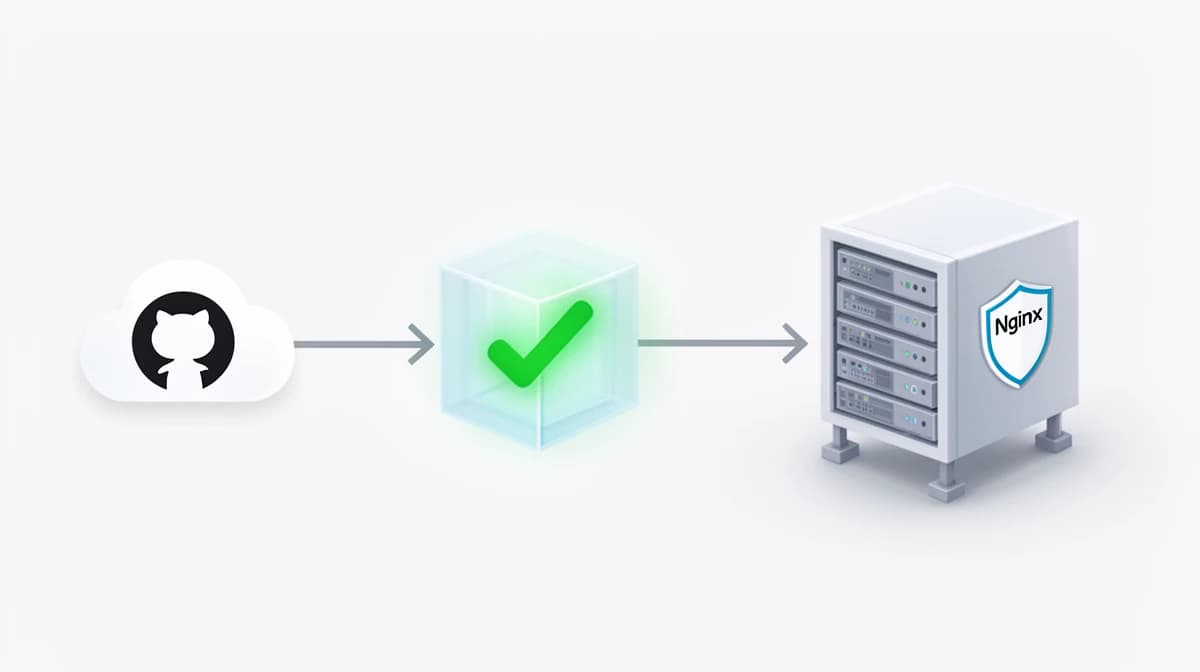
The server is only responsible for running containers, no longer for compiling code.
The migrated process:
-
Push to
main -
GitHub Actions:
-
checkout code
-
npm ci+next build -
build Docker image
-
push to image registry
-
-
VPS:
-
docker compose pull -
docker compose up -d -
service automatically restarts
-
The direct benefits:
-
The VPS will never OOM due to compilation again
-
Reproducible compilation environment (Docker)
-
Automated deployment operations (Actions)
-
Rollback to a previous image when problems occur
In one sentence:
Give "unstable things" to CI, and leave "stable things" to the server.
The structure I currently use is:
-
Host Nginx (not containerized):
-
Handles HTTPS / certificates
-
Reverse proxies to
127.0.0.1:3000(or another local port)
-
-
Docker Compose:
-
Runs the Next.js container (optional: Redis, queues, etc.)
-
Port bound only to
127.0.0.1, avoiding direct public exposure of the service
-
The benefits of doing this:
-
Nginx is still managed the familiar system-service way
-
Application deployment and rollback are fully image-based
-
Minimal public exposure surface
If you want a smaller Docker image and a runtime that doesn't depend on the full node_modules, enabling standalone mode is strongly recommended.
Add to next.config.js or next.config.mjs:
/** @type {import('next').NextConfig} */
const nextConfig = {
  output: 'standalone',
}

module.exports = nextConfig
-
Docker image size is noticeably smaller
-
The runner stage doesn't need the full
node_modules -
Better suited to the CI build + VPS run model
That's also why the Dockerfile below can copy only:
.next/standalone
.next/static
public
Core principles:
-
The build stage does all the heavy lifting
-
The runtime stage only runs the artifacts
# syntax=docker/dockerfile:1.6

############################
# 1) deps:安装依赖
############################
FROM node:22-slim AS deps
WORKDIR /app

# 证书(HTTPS 拉依赖/请求第三方)
RUN apt-get update && apt-get install -y --no-install-recommends \
    ca-certificates \
  && rm -rf /var/lib/apt/lists/*

# 先拷贝依赖清单以最大化缓存
COPY package.json package-lock.json* ./
RUN npm ci

############################
# 2) builder:编译 Next.js
############################
FROM node:22-slim AS builder
WORKDIR /app

RUN apt-get update && apt-get install -y --no-install-recommends \
    ca-certificates \
  && rm -rf /var/lib/apt/lists/*

COPY --from=deps /app/node_modules ./node_modules
COPY . .

# 关闭 Next 遥测
ENV NEXT_TELEMETRY_DISABLED=1

# -------------------------
# (可选) 构建期 Public Env(例如 Clerk 这类在 build 阶段会校验的配置)
# 需要在 GitHub Actions 中通过 build-args 传入
# -------------------------
ARG NEXT_PUBLIC_CLERK_PUBLISHABLE_KEY
ENV NEXT_PUBLIC_CLERK_PUBLISHABLE_KEY=$NEXT_PUBLIC_CLERK_PUBLISHABLE_KEY

# -------------------------
# (可选) 构建前生成命令:Prisma / OpenAPI / GraphQL Codegen 等
# 你的项目如果需要,取消注释即可
# -------------------------
# RUN npx prisma generate
# RUN npx openapi-typescript ./openapi.json -o ./src/types/openapi.d.ts
# RUN npx graphql-codegen

# 构建阶段编译
RUN npm run build

############################
# 3) runner:仅运行产物
############################
FROM node:22-slim AS runner
WORKDIR /app

ENV NODE_ENV=production
ENV PORT=3000
ENV NEXT_TELEMETRY_DISABLED=1

# 运行时仅保留必要工具
RUN apt-get update && apt-get install -y --no-install-recommends \
    ca-certificates \
    curl \
  && rm -rf /var/lib/apt/lists/*

# -------------------------
# (可选) Puppeteer:如果你的项目需要在容器里跑 Chromium
# 方案:安装系统 Chromium + 指定 executablePath,并禁用 Puppeteer 自己下载
# 你的项目如果需要,取消注释即可
# -------------------------
# RUN apt-get update && apt-get install -y --no-install-recommends \
#     chromium \
#     fonts-noto-cjk \
#     fontconfig \
#   && rm -rf /var/lib/apt/lists/*
# ENV PUPPETEER_EXECUTABLE_PATH=/usr/bin/chromium
# ENV PUPPETEER_SKIP_DOWNLOAD=true

# 只拷贝 standalone 运行所需文件
COPY --from=builder /app/public ./public
COPY --from=builder /app/.next/static ./.next/static
COPY --from=builder /app/.next/standalone ./

EXPOSE 3000
CMD ["node", "server.js"]
Key point: when using
output: 'standalone', the runner stage only needs to copystandalone + static + public.
Before using this deploy.yml, there are three points that must be prepared in advance, otherwise GitHub Actions cannot properly connect to your VPS or complete the build. These three things are explained separately below so you can follow them directly.
The deploy.yml below is the version I have used stably after practice:
-
Push to
mainautomatically builds the image and pushes it to Docker Hub -
SSH to the VPS, generate
docker-compose.yml, and pull the latest image to restart -
Container port bound only to
127.0.0.1
You need to configure in the GitHub repository under Settings → Secrets and variables → Actions:
DOCKER_USERNAME/DOCKER_PASSWORD
SERVER_HOST
SERVER_SSH_KEY
name: Deploy Next.js (Docker Compose)

on:
  push:
    branches: ["main"]

env:
  IMAGE_NAME: adfuture/aimazing.site
  SERVICE_NAME: aimazing-site
  HOST_PORT: 3001
  DEPLOY_PATH: /data/aimazing-site-docker

jobs:
  build-and-deploy:
    runs-on: ubuntu-latest
    permissions:
      contents: read

    steps:
      - name: Checkout Code
        uses: actions/checkout@v4

      - name: Set up Docker Buildx
        uses: docker/setup-buildx-action@v3

      - name: Login to Docker Hub
        uses: docker/login-action@v3
        with:
          username: ${{ secrets.DOCKER_USERNAME }}
          password: ${{ secrets.DOCKER_PASSWORD }}

      - name: Build and Push Image
        uses: docker/build-push-action@v6
        with:
          context: .
          file: ./Dockerfile
          push: true
          tags: |
            ${{ env.IMAGE_NAME }}:latest
            ${{ env.IMAGE_NAME }}:${{ github.sha }}
          cache-from: type=registry,ref=${{ env.IMAGE_NAME }}:buildcache
          cache-to: type=registry,ref=${{ env.IMAGE_NAME }}:buildcache,mode=max
          # (可选) build 阶段需要的 public env(例如 Clerk publishableKey)
          # 需要先在 GitHub Secrets 中配置:NEXT_PUBLIC_CLERK_PUBLISHABLE_KEY
          # build-args: |
          #   NEXT_PUBLIC_CLERK_PUBLISHABLE_KEY=${{ secrets.NEXT_PUBLIC_CLERK_PUBLISHABLE_KEY }}

      - name: Deploy to VPS
        uses: appleboy/ssh-action@master
        with:
          host: ${{ secrets.SERVER_HOST }}
          username: root
          key: ${{ secrets.SERVER_SSH_KEY }}
          script: |
            set -e

            DEPLOY_PATH="${{ env.DEPLOY_PATH }}"
            IMAGE_NAME="${{ env.IMAGE_NAME }}"
            SERVICE_NAME="${{ env.SERVICE_NAME }}"
            HOST_PORT="${{ env.HOST_PORT }}"

            mkdir -p "$DEPLOY_PATH"
            cd "$DEPLOY_PATH"

            # 生成 docker-compose.yml(顶格输出,避免缩进导致 YAML 解析异常)
            cat > docker-compose.yml <<EOF
            services:
              app:
                image: ${IMAGE_NAME}:latest
                container_name: ${SERVICE_NAME}
                restart: unless-stopped
                ports:
                  - "127.0.0.1:${HOST_PORT}:3000"
                env_file:
                  - .env
                environment:
		          # 运行在宿主机 Nginx 后面,仅用于容器内部探活
                  HOSTNAME: 127.0.0.1
                  PORT: 3000
                  # (可选) Redis:如果你把 redis 也放进 compose,用服务名访问
                  # REDIS_HOST: redis
                  # REDIS_PORT: "6379"

                # (可选) Redis:如果启用 redis 服务,取消注释 depends_on
                # depends_on:
                #   - redis

                healthcheck:
      # 直接使用固定的本地回环地址进行探活
      test: ["CMD-SHELL", "curl -fsS https://127.0.0.1:3000/health >/dev/null || exit 1"]
                  interval: 15s
                  timeout: 5s
                  retries: 5
                  start_period: 20s

                logging:
                  driver: "json-file"
                  options:
                    max-size: "10m"
                    max-file: "3"

              # (可选) Redis:需要的话直接取消注释即可
              # redis:
              #   image: redis:7-alpine
              #   container_name: ${SERVICE_NAME}-redis
              #   restart: unless-stopped
              #   command: ["redis-server", "--appendonly", "yes"]
              #   volumes:
              #     - redis_data:/data
              #   healthcheck:
              #     test: ["CMD", "redis-cli", "ping"]
              #     interval: 10s
              #     timeout: 3s
              #     retries: 10

            # volumes:
            #   redis_data:
            EOF

            # 确保 .env 存在(你在 VPS 上手动维护真实变量)
            test -f .env || touch .env

            docker compose pull
            docker compose up -d --remove-orphans

            docker image prune -f
Before continuing, let me add a preparation step that is very easily overlooked but will definitely stump beginners: how to configure GitHub Secrets (SERVER_HOST / SERVER_SSH_KEY).
SERVER_HOST is your VPS public IP or domain, for example:
1.2.3.4
or:
vps.example.com
In the GitHub repository, go to:
Settings → Secrets and variables → Actions → New repository secret
-
Name:
SERVER_HOST -
Value: your VPS IP or domain
Run on your own computer (not the VPS):
ssh-keygen -t ed25519 -C "github-actions" -f ~/.ssh/github_actions
Two files will be generated:
~/.ssh/github_actions      # 私钥(给 GitHub)
~/.ssh/github_actions.pub  # 公钥(给 VPS)
Next, add the public key to the VPS:
cat ~/.ssh/github_actions.pub | ssh root@YOUR_VPS_IP "mkdir -p ~/.ssh && cat >> ~/.ssh/authorized_keys"
Then, copy the private key content to GitHub Secrets:
cat ~/.ssh/github_actions
-
Name:
SERVER_SSH_KEY -
Value: the complete private key content output above (including
BEGIN/END)
Recommendation: use this key only for CI deployment, and do not mix it with the key you normally use to log in to the VPS.
In this part I try to use the form of "before / after" or "minimal code blocks" so you can copy and use them directly.
Symptom:
container_name: ${SERVICE_NAME}
But .env already has SERVICE_NAME, yet it is empty at startup.
Cause:
-
Fields like
container_name / image / ports -
Only read Compose parse-stage variables (shell or
.envin the same directory) -
env_file:is only injected into the container runtime
Recommended approach:
-
Define Compose-level variables explicitly in the SSH script of
deploy.yml -
Only put business variables in
.env
Before (direct host connection):
redis://127.0.0.1:6379
After (Docker Compose internal network):
redis://redis:6379
Or unify via environment variables:
REDIS_HOST=redis
REDIS_PORT=6379
`redis://${process.env.REDIS_HOST}:${process.env.REDIS_PORT}`
Core understanding:
127.0.0.1inside a container points only to the current container itself, not the host, and not other containers.
127.0.0.1 is not the host, nor other containers.**
Symptom:
-
Runs locally
-
next buildfails during the Docker build stage
The cause is often missing generated code.
Correct placement (Dockerfile / builder stage):
# 在 npm run build 之前
RUN npx prisma generate

RUN npm run build
Principle: All "generative commands" must enter the Docker build process.
Before (default approach):
puppeteer.launch()
After (explicitly specify the path):
puppeteer.launch({
  executablePath: process.env.PUPPETEER_EXECUTABLE_PATH,
  args: ["--no-sandbox", "--disable-setuid-sandbox"],
})
Also specify in the Dockerfile:
ENV PUPPETEER_EXECUTABLE_PATH=/usr/bin/chromium
ENV PUPPETEER_SKIP_DOWNLOAD=true
Cause:
-
The Next.js build stage executes some component code
-
The CI / Docker build environment lacks the public env
GitHub Actions (pass build-arg):
build-args: |
  NEXT_PUBLIC_CLERK_PUBLISHABLE_KEY=${{ secrets.NEXT_PUBLIC_CLERK_PUBLISHABLE_KEY }}
Dockerfile (inject in builder stage):
ARG NEXT_PUBLIC_CLERK_PUBLISHABLE_KEY
ENV NEXT_PUBLIC_CLERK_PUBLISHABLE_KEY=$NEXT_PUBLIC_CLERK_PUBLISHABLE_KEY
Must be placed before:
RUN npm run build
Common problem:
healthcheck:
  test: ["CMD-SHELL", "curl -fsS http://127.0.0.1:3000/ || exit 1"]
In some frameworks or custom servers, / is not an accessible health endpoint.
Recommended approach:
- Expose a fixed health endpoint in the application, for example:
/health
- Control it uniformly via environment variables in
docker-compose.yml:
environment:
  HOSTNAME: http://127.0.0.1:3000
healthcheck:
  test: ["CMD-SHELL", "curl -fsS $HOSTNAME/health || exit 1"]
The benefits of doing this:
-
The health check address is configurable
-
Multiple environments (port / prefix) require no changes to the compose structure
-
Closer to the real business liveness state
-
A free Docker Hub account usually has only 1 private repository quota.
-
If you have multiple private projects, it is recommended to migrate to GHCR (GitHub Container Registry):
-
More flexible private images
-
Native integration with GitHub Actions
-
(I will write a separate article later: a complete rewrite template for migrating from Docker Hub to GHCR.)
From "manual compilation on the VPS" to "Docker + CI automated deployment", the biggest change is not technology but mindset:
I no longer treat the server as a "development environment", but as a stably running infrastructure node.
Once the build is moved off the VPS:
-
Compilation failures no longer affect production
-
The VPS no longer randomly goes down due to OOM
-
Deployment changes from "manual operation" to a "reproducible process"
If you are working on a Next.js project, especially on a small-memory VPS, it is recommended to move the build to CI as early as possible.