
VPS Tutorials
Does a VPS keep running when your computer is off? (2026): keeping programs alive after SSH disconnects
Turning off your computer usually does not shut down a VPS, but whether terminal tasks continue depends on how they were started. Compare common actions, learn to create, detach and reattach a tmux session in four steps, and verify it with a 30-second test.
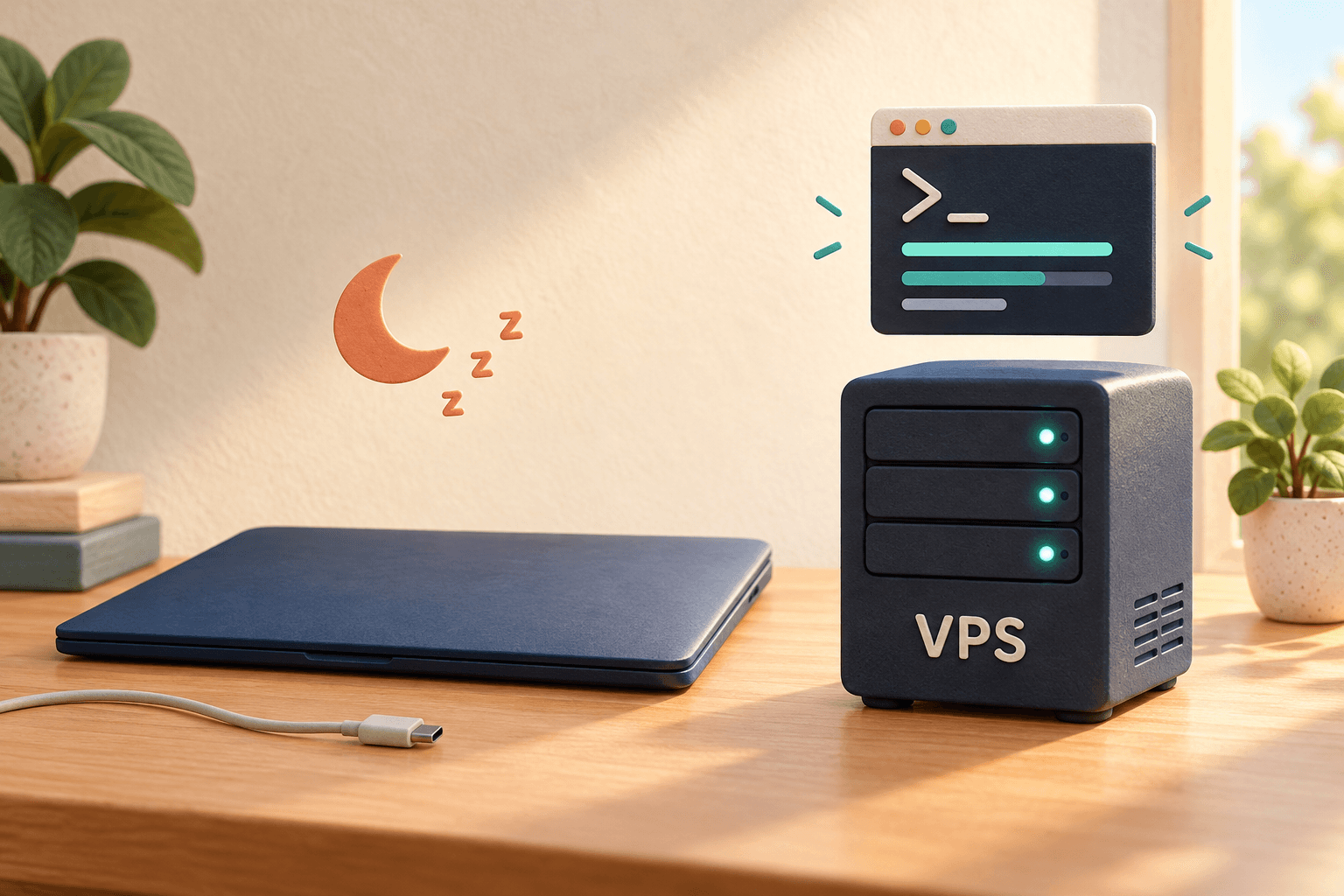
Your VPS usually keeps running after you shut down your own computer. Your computer is just the tool you use to connect to the server. The VPS runs in a remote data center and does not depend on your computer for power.
However, check “the VPS is still on” and “the program I started is still running” separately. Website services, scripts launched directly in an SSH window and remote coding tools can behave differently when you disconnect.
If you are worried about interrupting a task when you turn off your computer, first understand the differences below, then use tmux to preserve the terminal session you want to return to.
What is the difference between shutting down your computer, disconnecting SSH and shutting down the VPS?
| Your action | What happens to the VPS | What happens to running tasks |
|---|---|---|
| Shut down, suspend or disconnect your own computer | It usually keeps running | Independent services usually continue; terminal tasks depend on how they were started |
| Close the SSH window | It usually keeps running | A foreground program started directly in that window may stop |
| Press Ctrl+C inside a program | The VPS keeps running | This usually interrupts the current foreground task |
| Restart the VPS in the control panel | The server restarts | Existing processes end; whether they return depends on startup configuration |
| Shut down the VPS in the control panel | The server stops | Its tasks stop too |
Shutting down your local computer is not the same as selecting Shut down for the VPS. If you are unsure which machine an action affects, check the provider control panel and SSH window carefully. Do not confuse restarting the server with logging out.
A program launched directly in a regular SSH window may stop when the connection ends. The exact behavior depends on the program and how it was started, so closing the window alone is not a reason to assume everything will continue.
For beginners, distinguish two cases:
- Websites, databases and other applications already configured as independent services following their tutorials: you generally do not need to keep the SSH window open.
- Scripts or interactive tools you just started manually in the terminal: consider how to preserve the session. The VPS showing “running” does not prove that the task is still active.
tmux keeps a terminal session on the VPS so you can leave temporarily and return later. See the official tmux getting-started documentation for this purpose and the basic operations.
The examples below use an Ubuntu / Debian VPS. Run the commands in the server terminal after logging in over SSH; do not install the package in your own computer's local terminal. Installation requires the current user to have sudo privileges.
If you have not logged in yet, start with the beginner steps for connecting to a VPS from a phone. On a computer, you also establish the SSH connection first and then run the commands on the server.
Skip this if it is already installed. Otherwise, run:
sudo apt update
sudo apt install -y tmux
For other systems, use the appropriate package manager instead of copying apt directly. Platform-specific methods are in the official tmux installation instructions.
tmux new -s work
Once inside the new terminal interface, start the script or tool you wanted to run. work is the name of this session, which you will use to find it again.
Enter tmux first, then start the program. Creating a new tmux session will not automatically move a program already running in an ordinary terminal into it. Do not interrupt an important task just to do this; first check whether it can be safely stopped or run again.
For your first attempt, try this 30-second test inside tmux. It does not modify files:
printf '任务开始\n'
sleep 30
printf '任务完成\n'
It simply waits 30 seconds and then prints a completion message, helping you understand how leaving and reattaching a session works.
When you see the task-start message, use this sequence:
- Hold Ctrl and press b.
- Release both keys.
- Press lowercase d once.
This is the default tmux detach shortcut. You return to the original SSH prompt and usually see a message containing detached. You can then close the SSH window.
Do not substitute exit for detaching. exit exits the current shell; if it is the last window in the session, the session ends as well. Ctrl+C usually stops the current foreground task.
The next time you log in to the same VPS as the same Linux user, run:
tmux attach -t work
You return to the original terminal. Once the wait in the test above has ended, you should see its completion message. For a real task, inspect its own output, logs or actual results.
If the session cannot be found, first list sessions:
tmux ls
Check whether you logged in to a different machine, changed users, previously exited the session or restarted the VPS. If you see duplicate session: work, a session with that name already exists. Try reattaching before repeatedly creating new sessions.
These session commands are also documented in the official tmux manual. To get started, focus on creating, detaching and reattaching.
The original tmux sessions usually do not survive a VPS restart. tmux mainly lets you leave a terminal or lose SSH connectivity and reattach later. It does not automatically configure startup at boot. Long-running websites and services need automatic startup configured according to their application tutorials. If a service does not return after restarting, see the service startup checks.
tmux will not handle program errors, insufficient memory or requests for input for you. An existing session does not guarantee that its program is working correctly. Operations requiring your confirmation may still be waiting for a response.
When an SSH tunnel on your computer disconnects, a webpage accessed through it may stop opening. The access path has broken, but the program on the VPS may still be running. Reconnect and check server status before starting a duplicate program.
Before leaving a real long-running task, perform a short test:
- Confirm the program was started on the VPS, rather than your local computer.
- Confirm you are inside tmux and can remember the session name.
- Detach, close SSH once, then log in again and reattach.
- Inspect task output to confirm it kept running or finished normally.
- Save important files promptly and keep separate backups.
The same principle applies to interactive AI coding tools: start them inside a tmux session on the VPS and reattach when needed. A tool may still require you to approve actions or pause because of connectivity or quota issues. For installation details, continue with the Gemini CLI tutorial for a VPS.
It normally will not shut down the VPS, but it may break the current SSH or tunnel connection. Whether a task continues still depends on where it is running and how it was started.
If it was running inside tmux, log in as the original user, list the sessions and reattach. If you did not use tmux, whether the program is still running depends on its actual state. Do not immediately rerun a task that could execute twice.
No. It does not automatically fix program errors or recover from server restarts, and it cannot replace log checks or backups. For a lasting service, configure service management and recovery as the application requires.
Remember this sequence: log in to the VPS → enter tmux → start the task → detach → log in again and reattach. Verify it with a short task before leaving work to run for a long time.