
Technical Tutorials
Build a Private Cloud Drive on a VPS (2025) - NextCloud vs Seafile Full Guide
The latest 2025 guide to building a private cloud drive on a VPS. An in-depth comparison of the two major open-source solutions, NextCloud and Seafile, plus ready-to-use Docker deployment configurations.
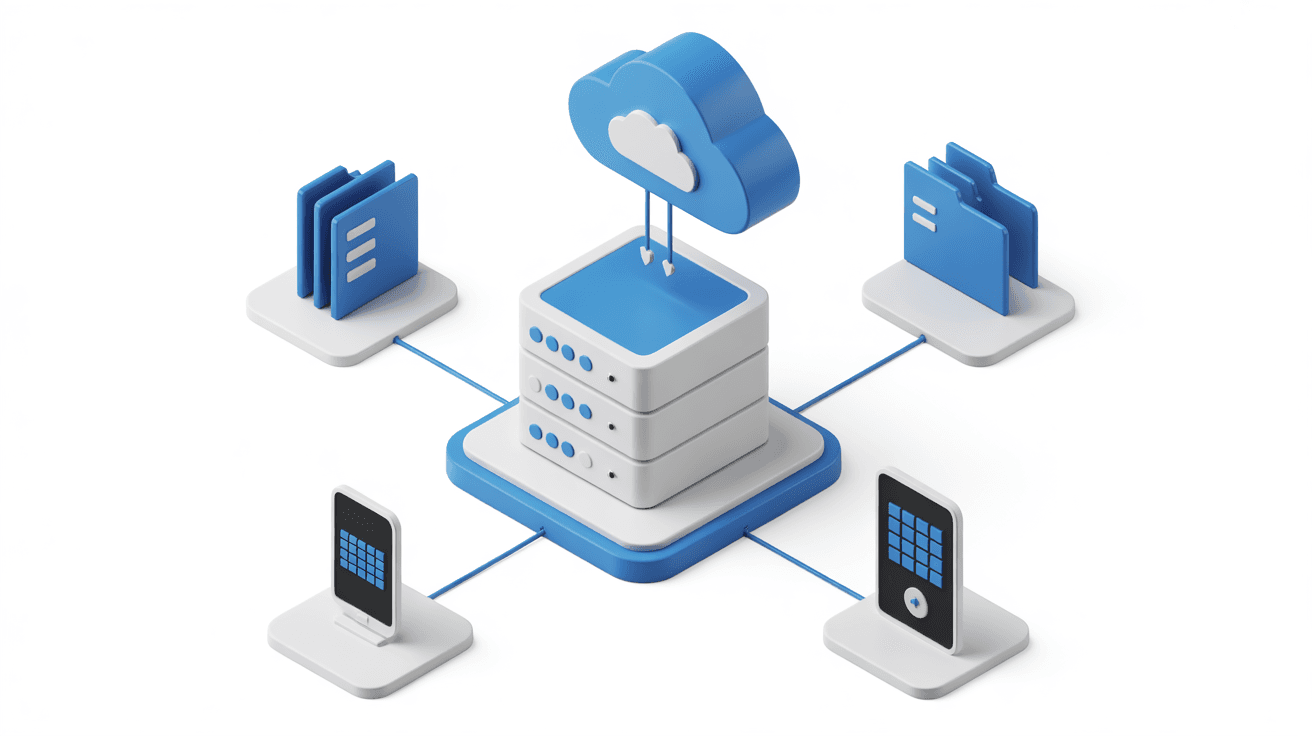
In an era where Baidu Netdisk throttles speeds to 100KB/s, Google Drive is inaccessible in mainland China, and Dropbox syncs as slowly as a snail, more and more people are turning to self-hosted private cloud drives.
Building your own cloud drive on your own VPS means:
- No capacity limits: as long as your disk is big enough, you can store as much as you want.
- No speed limits: uploads and downloads run at full bandwidth.
- 100% privacy under your control: only you can see your files.
This article walks you through a comparison of the two mainstream open-source cloud drive solutions, NextCloud and Seafile, and provides ready-to-use Docker deployment configurations.
| Feature | NextCloud | Seafile |
|---|---|---|
| Positioning | All-in-one suite (files + calendar + contacts + meetings) | Focused on file sync |
| Interface | Similar to Google Drive, feature-rich | Clean and efficient, tool-oriented style |
| Sync speed | Average | Extremely fast (block-level sync technology) |
| Resource usage | Relatively high (2 cores / 2GB or more recommended) | Low (runs on 1 core / 1GB) |
| Plugin ecosystem | Extremely rich (Office suite, Markdown editor, etc.) | Fewer options |
| Best for | All-round users who want to replace Google Workspace | Users who just want a stable, fast file sync service |
Summary:
- Want an all-in-one office suite → NextCloud
- Just want to quietly sync files → Seafile
Create a directory and enter it:
mkdir nextcloud && cd nextcloud
Create docker-compose.yml:
services:
  db:
    image: mariadb:10.11
    container_name: nextcloud-db
    restart: always
    environment:
      MYSQL_ROOT_PASSWORD: your_root_password
      MYSQL_DATABASE: nextcloud
      MYSQL_USER: nextcloud
      MYSQL_PASSWORD: your_db_password
    volumes:
      - db_data:/var/lib/mysql

  app:
    image: nextcloud:stable
    container_name: nextcloud-app
    restart: always
    ports:
      - "8080:80"
    environment:
      MYSQL_HOST: db
      MYSQL_DATABASE: nextcloud
      MYSQL_USER: nextcloud
      MYSQL_PASSWORD: your_db_password
    volumes:
      - nextcloud_data:/var/www/html
    depends_on:
      - db

volumes:
  db_data:
  nextcloud_data:
Start the service:
docker compose up -d
Visit http://你的IP:8080 and complete the initialization by following the prompts.
Create a directory and enter it:
mkdir seafile && cd seafile
Create docker-compose.yml:
services:
  db:
    image: mariadb:10.11
    container_name: seafile-db
    restart: always
    environment:
      MYSQL_ROOT_PASSWORD: your_root_password
      MYSQL_LOG_CONSOLE: "true"
    volumes:
      - db_data:/var/lib/mysql

  memcached:
    image: memcached:1.6
    container_name: seafile-memcached
    restart: always
    entrypoint: memcached -m 256

  seafile:
    image: seafileltd/seafile-mc:11.0-latest
    container_name: seafile
    restart: always
    ports:
      - "8081:80"
    environment:
      DB_HOST: db
      DB_ROOT_PASSWD: your_root_password
      SEAFILE_ADMIN_EMAIL: [email protected]
      SEAFILE_ADMIN_PASSWORD: your_admin_password
      SEAFILE_SERVER_HOSTNAME: seafile.yourdomain.com
    volumes:
      - seafile_data:/shared
    depends_on:
      - db
      - memcached

volumes:
  db_data:
  seafile_data:
Start the service:
docker compose up -d
Visit http://你的IP:8081 and log in with the admin email and password you set.
Whichever option you choose, running plain HTTP is extremely insecure. You must configure HTTPS.
The simplest way: use Caddy as a reverse proxy; it automatically obtains Let's Encrypt certificates.
Create a Caddyfile:
cloud.yourdomain.com {
    reverse_proxy localhost:8080  # NextCloud 用 8080, Seafile 用 8081
}
Then install and run Caddy:
sudo apt install -y debian-keyring debian-archive-keyring apt-transport-https
curl -1sLf 'https://dl.cloudsmith.io/public/caddy/stable/gpg.key' | sudo gpg --dearmor -o /usr/share/keyrings/caddy-stable-archive-keyring.gpg
curl -1sLf 'https://dl.cloudsmith.io/public/caddy/stable/debian.deb.txt' | sudo tee /etc/apt/sources.list.d/caddy-stable.list
sudo apt update
sudo apt install caddy
sudo caddy run
- NextCloud: official apps are available for both iOS and Android; just search for "Nextcloud".
- Seafile: also has an official app; search for "Seafile". It also supports the SeaDrive client, which lets you mount cloud files like a local drive.
Self-hosting a cloud drive is one of the most practical uses of a VPS. Whether you choose NextCloud or Seafile depends on whether you value "comprehensive features" or "lightweight speed" more. Either way, you can say goodbye once and for all to the speed throttling and privacy concerns of third-party cloud drives.
Pro Tip: If your VPS doesn't have enough storage space, you can mount S3, OneDrive, or Google Drive as external storage via Rclone to achieve an "unlimited capacity" hybrid cloud architecture.