
VPS Tutorials
Using a VPS web console (2026): VNC login and troubleshooting when SSH fails
For first-time console users, distinguish browser SSH from out-of-band consoles, handle login, black-screen and keyboard problems, and verify SSH and application access after recovery.
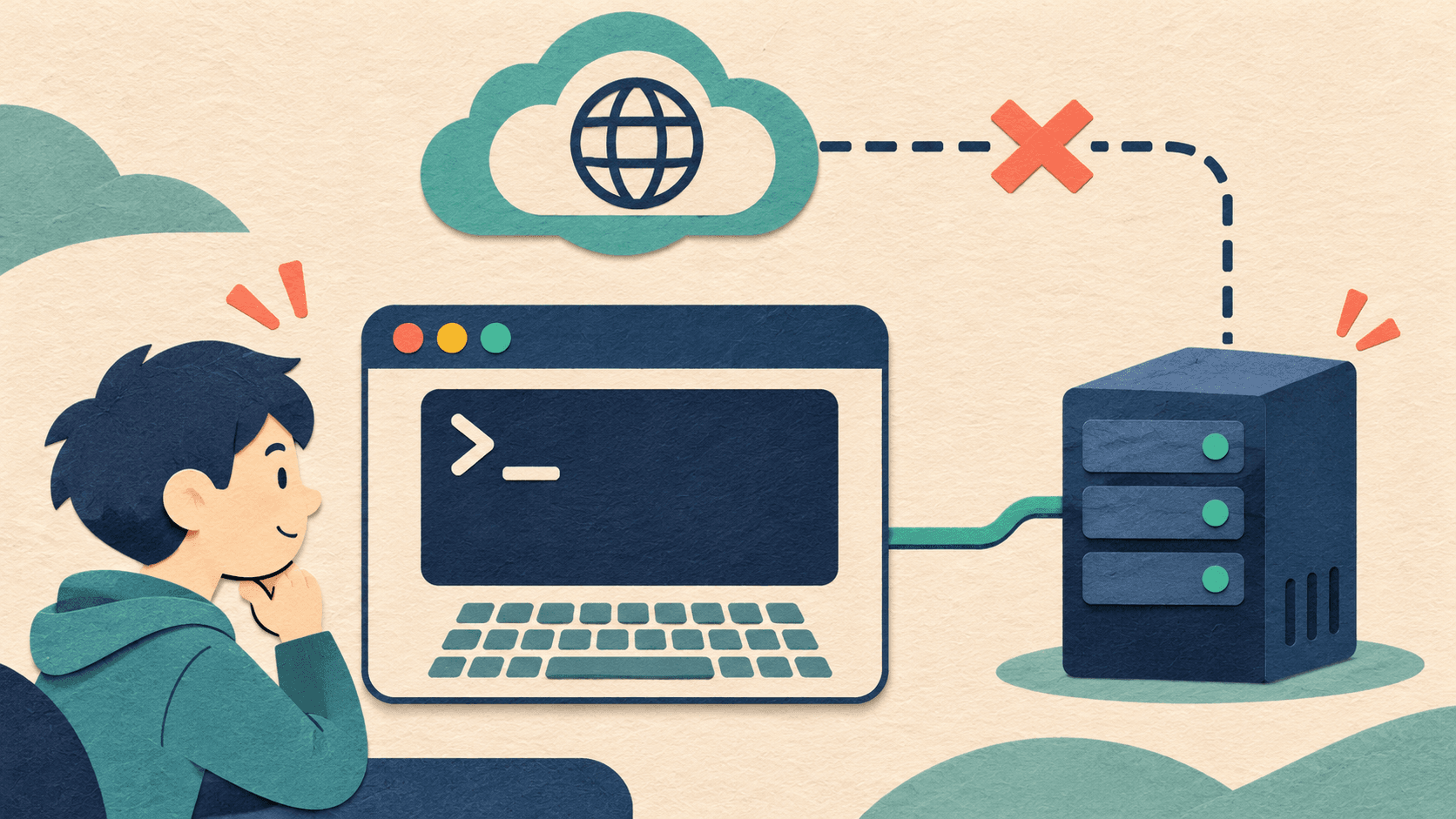
If SSH suddenly stops connecting, sign into your provider's panel and open the VPS's VNC, KVM or Recovery Console. An out-of-band console usually lets you see the virtual machine's screen, or system output through a serial connection. Even if the VPS network configuration is wrong, you may still be able to log in there and investigate.
If you lost access after changing the firewall, SSH port or network interface, open the console first. A login prompt, a boot error and a browser connection failure require different responses.
A provider may offer several connection methods, all with Console in their names. Read the feature description before opening one to understand which connection path it depends on.
| Entry point | What you generally see | When it is useful |
|---|---|---|
| Web SSH or Browser SSH | An SSH terminal in the browser | When system networking and the SSH service work |
| VNC, KVM or recovery console | The VM screen and keyboard input | Investigating network, firewall or SSH service faults |
| Serial Console | Serial output and possibly a text login prompt | Reading boot logs or logging in when serial login is configured |
| Rescue Mode or Recovery ISO | A separate rescue environment entered after restarting | Inspecting the original disk when the system will not boot or normal login is unavailable |
For example, a platform's regular browser terminal may depend on SSH while its recovery entry point uses a separate management path. Names, availability and required account permissions depend on the instance panel. Official recovery console documentation · Example serial access permissions
- Enter the instance details through the provider's trusted panel. Check the machine name, instance ID and IP address. If you have similar machines, note which one you are recovering.
- Look for VNC, View Console, KVM or Recovery Console under management, connection or settings. If no window opens, check whether the browser blocked a popup from this panel.
- Click the console screen to direct keyboard input there. At the Linux
login:prompt, enter the system username. If the screen is blank, first make sure it is not showing an update or boot in progress. Then click inside and press Enter once gently to check for a response. - When
Password:appears, enter that system account's password and press Enter. Linux text logins usually show neither characters nor asterisks. Enter it once. - After login, check the hostname in the prompt. For additional confirmation, run the read-only command
hostnameand compare it with your recorded system hostname. The provider's instance display name can differ from the operating-system hostname.
Use the VPS's system account here. Your provider website email and password are for its management panel. If you normally authenticate with an SSH private key, keep that key on your own device and confirm the separate system password required at this prompt.
Check input first. Click the screen and try ordinary letters and numbers in the unsubmitted username field. Check case, number keys and input method, then clear the test text. Password input stays invisible. Some consoles have a paste button; others require manual typing. Follow the toolbar instructions.
Then check the system account. Use a username actually configured on this machine. An instance used only with SSH keys may have no usable local password, or the image may restrict local login for that account. Look for the official password recovery process in the panel. Check whether it restarts the server or affects current services before deciding when to run it. VPS password recovery methods
If the window opens but a serial console never shows a login prompt, check whether the system has serial login configured. You can try the provider's graphical console or send the instance status and visible screen to support for investigation.
| What you see | Checks to try first |
|---|---|
| No window opens | Check popup notices and account permissions, then reopen from the instance page |
| Connection failed or disconnected | Check instance status, reopen the session and read provider status notices |
| Connected console with a black screen | Click to focus input, see whether the display wakes and confirm the graphical or serial entry point is correct |
| The same boot error remains onscreen | Record the full error, time and last change, then investigate a system boot failure |
| A login prompt appears, but SSH still times out | Check the address and actual SSH port, then system firewall, security groups and SSH service |
The console toolbar may also contain restart, shutdown or key-combination buttons. Read their labels first. Closing a browser tab usually just leaves the console; restart and power actions affect the instance. If boot is stuck, retain the screen and error information before deciding what to do next.
If you changed the SSH port, use your change record to confirm the current server port, cloud security group and system firewall agree, and check the local client's port. If enabling UFW disconnected you, inspect its rules through the console and allow the actual SSH port for the management source. Recovering SSH blocked by UFW
If local system login works but you have no recent-change clue, record the complete external SSH error first. Timeouts, refused connections and authentication failures point to different checks. Use the console to observe, choose one check from the evidence and record its result. Troubleshooting failed SSH connections
If the original system repeatedly fails to boot, preserve errors and confirm backups first. When a rescue environment is necessary, arrange the operation according to the provider's instructions and identify the original system disk you access from rescue. Rescue mode guide · Official recovery image documentation
Keep the console open and start another SSH window locally. Reconnect using the intended address, port and authentication method. After success, confirm host and account, then check the websites or applications depending on this machine. If you added temporary firewall rules, clean them up and test a new connection again. Once verified, log out of the system account in the console and close the window.