
VPS Tutorials
Mattermost on a VPS (2026): Docker, PostgreSQL, Caddy HTTPS and backups
Deploy Mattermost 11.7 ESR on Ubuntu 24.04 with official Docker Compose, PostgreSQL and Caddy. Configure SMTP, mobile push and Calls, then back up, restore and upgrade safely.
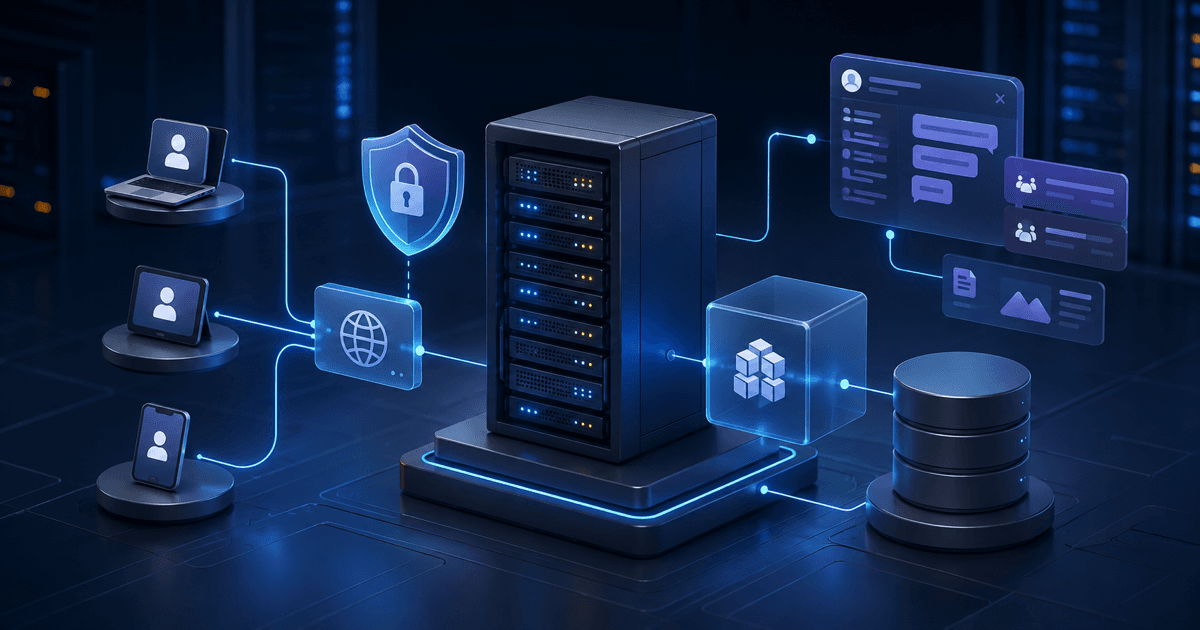
Team chat looks lightweight until it is used in production. The difficult part is making the domain, WebSockets, attachments, mobile push, voice calls and recoverable backups work together.
This guide uses Ubuntu 24.04, Mattermost 11.7 ESR, the official Docker Compose deployment, PostgreSQL and host-installed Caddy. It covers HTTPS, the first administrator, SMTP, mobile notifications, Calls, backup, recovery and upgrades, including the limits of a small single VPS.
Version context: the September 2026 source uses the 11.7 ESR line. The example 11.7.9 image exists, but that does not make it today's latest security patch. Pin a supported patch release and subscribe to security notices. Check
env.exampleand release notes in the official Docker repository before deployment. Review edition licensing as well as the version.
Mattermost provides channels, direct messages, files, search, webhooks, bots, plugins and desktop/mobile clients. Consider it when:
- Team messages, attachments or audit data require control outside a public SaaS.
- Development, operations or support teams need one internal communication service.
- GitLab, Jira, CI/CD alerts and ChatOps should share channels.
- Someone can maintain Linux, Docker, PostgreSQL, backups and security updates.
- You can start with 10–50 people and expand using measured load.
For a few people chatting temporarily without a recovery owner, a managed service is usually easier. Self-hosting offers data control and integration flexibility, while still costing VPS resources, a domain, email, object storage, backup space and maintenance time.
| Service | Best suited to | Main benefit | Responsibility or constraint |
|---|---|---|---|
| Mattermost | Internal collaboration and development/operations ChatOps | Controlled data, webhooks/plugins, private-network deployment | Servers, database, backup, push and updates |
| Slack | Fast onboarding, external collaboration, SaaS integrations | Less infrastructure maintenance | SaaS pricing and data policies |
| Discord | Communities, voice rooms and public engagement | Familiar community tools | Limited fit for tightly controlled enterprise data |
Compare active users, attachment growth, compliance, push, SSO and call size. A familiar interface alone does not determine operating cost.
The source cites an application-level baseline of 1 vCPU/2 GB for up to roughly 1,000 registered users. Registered accounts are not concurrent active users, and this is not a capacity guarantee for a whole VPS. Plugins, search, uploads and calls change demand; PostgreSQL, Docker and Caddy need resources too.
| Workload | Practical starting point | Storage | Conditions |
|---|---|---|---|
| 10–30-person pilot | 2 vCPU / 4 GB RAM | 60 GB NVMe | Mostly text and modest attachments |
| 30–100 daily users | 4 vCPU / 8 GB RAM | 100–200 GB NVMe | More plugins, webhooks and files |
| Over 100 or high activity | 4–8 vCPU / 16 GB+ RAM | Consider separate database/object storage | Load-test before splitting services |
Estimate annual attachments as active users × monthly upload volume per user × 12 × a 1.5 safety factor. The source formula is:
一年附件容量 ≈ 活跃用户数 × 每人每月附件量 × 12 × 1.5 安全系数
At 50 users uploading 100 MB each per month, raw annual attachments are about 60 GB, before the safety factor, database, logs, indexes and backup copies. A 100 GB disk can fill quickly. Consider S3-compatible storage for heavier use; see the MinIO deployment guide.
Browsers, desktop and mobile clients reach host Caddy over HTTPS 443; Caddy forwards to Mattermost at loopback 8065, and Mattermost reaches PostgreSQL over Docker networking. Calls media reaches Mattermost directly over UDP/TCP 8443. The original diagram is:
浏览器 / 桌面端 / 手机端
          │ HTTPS 443
          ▼
     Caddy(宿主机)
          │ 127.0.0.1:8065
          ▼
     Mattermost 容器
          │ Docker 内网 5432
          ▼
     PostgreSQL 容器

Calls 媒体:客户端 ── UDP/TCP 8443 ──> Mattermost
Open only the ports required by enabled features:
22/tcp: SSH, preferably restricted to management addresses.80/tcpand443/tcp: certificate issuance and web access.8443/udpand8443/tcp: when Calls is enabled.8065/tcp: bind only to127.0.0.1, never publicly.5432/tcp: Docker networking only.
Caddy's HTTP proxy does not forward the 8443 media stream. Evaluate TCP fallback or TURN for networks blocking UDP, and RTCD for larger call workloads. Verify published Docker ports and the cloud firewall; Docker port publication can bypass expectations based only on UFW rules.
Use a subdomain such as chat.example.com with an A record pointing at the public IPv4 address. Publish AAAA only when IPv6 actually reaches the service; an unusable AAAA can cause intermittent certificate or client failures.
export MM_DOMAIN="chat.example.com"
getent ahosts "$MM_DOMAIN"
curl -4 https://ifconfig.me
Update the system and configure the firewall. Preserve working SSH access before enabling it:
sudo apt-get update
sudo apt-get upgrade -y
sudo apt-get install -y ca-certificates curl git openssl ufw

sudo ufw default deny incoming
sudo ufw default allow outgoing
sudo ufw allow OpenSSH
sudo ufw allow 80/tcp
sudo ufw allow 443/tcp
sudo ufw allow 8443/tcp
sudo ufw allow 8443/udp
sudo ufw enable
sudo ufw status verbose
Leave 8443 closed if you are not enabling Calls.
sudo install -m 0755 -d /etc/apt/keyrings
sudo curl -fsSL https://download.docker.com/linux/ubuntu/gpg -o /etc/apt/keyrings/docker.asc
sudo chmod a+r /etc/apt/keyrings/docker.asc

echo "deb [arch=$(dpkg --print-architecture) signed-by=/etc/apt/keyrings/docker.asc] https://download.docker.com/linux/ubuntu $(. /etc/os-release && echo "$VERSION_CODENAME") stable" | sudo tee /etc/apt/sources.list.d/docker.list >/dev/null

sudo apt-get update
sudo apt-get install -y docker-ce docker-ce-cli containerd.io docker-buildx-plugin docker-compose-plugin
sudo systemctl enable --now docker
sudo docker version
sudo docker compose version
For health checks, log rotation and resource limits, see the production Docker Compose checklist.
Do not use mattermost-preview for production. Preview has known passwords, disabled email, nonpersistent data and no normal upgrade path.
sudo install -d -o "$USER" -g "$USER" -m 0750 /opt/mattermost
cd /opt/mattermost
git clone https://github.com/mattermost/docker.git
cd docker
cp env.example .env
Inspect the checkout and example configuration:
git status --short
git log -1 --oneline
grep -E '^(POSTGRES_IMAGE_TAG|MATTERMOST_IMAGE|MATTERMOST_IMAGE_TAG)=' env.example
Record the tested repository commit. Moving the repository forward later can change volume paths, environment variables or Compose behavior even when the application image remains pinned.
Generate a strong database password:
openssl rand -base64 36
Edit /opt/mattermost/docker/.env, changing at least these values while retaining other required entries from the copied example:
DOMAIN=chat.example.com
TZ=Asia/Shanghai
RESTART_POLICY=unless-stopped

POSTGRES_IMAGE_TAG=18-alpine
POSTGRES_USER=mmuser
POSTGRES_PASSWORD=replace-with-a-long-random-password
POSTGRES_DB=mattermost

MATTERMOST_IMAGE=mattermost-team-edition
MATTERMOST_IMAGE_TAG=11.7.9
APP_PORT=8065
CALLS_PORT=8443

MM_SERVICESETTINGS_SITEURL=https://chat.example.com
The sample timezone is a configuration choice; choose the timezone your team needs. Team Edition is a starting point for evaluation, not a promise that every production feature is included. Check the current Entry, Professional and Enterprise boundaries for permissions, compliance, mobile push and Calls. Confirm a supported secure patch instead of blindly copying 11.7.9. Pin PostgreSQL too; changing a major tag against an existing data directory requires a database migration, not a container restart. The current official deployment mounts PostgreSQL 18 data at its expected parent path, so retain the tested repository's volume mapping.
Restrict access to the environment file:
chmod 600 .env
The official Mattermost user has UID/GID 2000. Incorrect ownership often causes restart loops with permission denied:
cd /opt/mattermost/docker
mkdir -p ./volumes/app/mattermost/{config,data,logs,plugins,client/plugins,bleve-indexes}
sudo chown -R 2000:2000 ./volumes/app/mattermost
PostgreSQL initializes its own directory. Do not combine application files and database data into one mount.
The official docker-compose.without-nginx.yml publishes 8065 on all host addresses. Use this separate override with the base Compose file to bind web traffic to loopback while retaining Calls media:
cd /opt/mattermost/docker
cat >docker-compose.caddy.yml <<'YAML'
services:
  mattermost:
    ports:
      - "127.0.0.1:${APP_PORT}:8065"
      - "${CALLS_PORT}:${CALLS_PORT}/udp"
      - "${CALLS_PORT}:${CALLS_PORT}/tcp"
YAML

sudo docker compose -f docker-compose.yml -f docker-compose.caddy.yml config >/tmp/mattermost-compose.yml
grep -A12 'ports:' /tmp/mattermost-compose.yml
Rendered Compose contains the database password. Run inspection with a private umask, do not share that file, and remove it after verifying the 8065 HostIp is 127.0.0.1. Do not additionally include the public-port override; Compose may merge port lists.
Start only after confirming the effective configuration:
sudo docker compose -f docker-compose.yml -f docker-compose.caddy.yml pull
sudo docker compose -f docker-compose.yml -f docker-compose.caddy.yml up -d
sudo docker compose -f docker-compose.yml -f docker-compose.caddy.yml ps
sudo docker compose -f docker-compose.yml -f docker-compose.caddy.yml logs --tail=100 postgres mattermost
Check local health:
curl -fsS http://127.0.0.1:8065/api/v4/system/ping
ss -lntup | grep -E ':8065|:8443'
The ping endpoint should return JSON with status: OK, and 8065 should listen only at 127.0.0.1. Remove /tmp/mattermost-compose.yml after inspection.
sudo apt-get install -y debian-keyring debian-archive-keyring apt-transport-https curl gnupg
curl -1sLf 'https://dl.cloudsmith.io/public/caddy/stable/gpg.key' | sudo gpg --dearmor -o /usr/share/keyrings/caddy-stable-archive-keyring.gpg
curl -1sLf 'https://dl.cloudsmith.io/public/caddy/stable/debian.deb.txt' | sudo tee /etc/apt/sources.list.d/caddy-stable.list >/dev/null
sudo apt-get update
sudo apt-get install -y caddy
Create /etc/caddy/Caddyfile:
chat.example.com {
    encode zstd gzip

    reverse_proxy 127.0.0.1:8065 {
        header_up X-Real-IP {remote_host}
        header_up X-Forwarded-Proto {scheme}
    }

    log {
        output file /var/log/caddy/mattermost-access.log {
            roll_size 100MiB
            roll_keep 7
        }
    }
}
Make the access-log directory writable by the Caddy service before reloading: sudo install -d -o caddy -g caddy -m 0750 /var/log/caddy. Caddy's reverse_proxy handles WebSockets by default; manual Upgrade rules are unnecessary.
Validate and reload:
sudo caddy fmt --overwrite /etc/caddy/Caddyfile
sudo caddy validate --config /etc/caddy/Caddyfile
sudo systemctl reload caddy
sudo systemctl status caddy --no-pager

curl -I https://chat.example.com
curl -fsS https://chat.example.com/api/v4/system/ping
The complete Caddy guide covers HTTPS, logging and multiple domains.
Open https://chat.example.com, create the first account and team, and confirm its system-administrator role. Then:
- Set the site name, support address and registration policy.
- Disable unnecessary public registration; prefer invitations or controlled domains.
- Configure SMTP and verify invitation, reset and mention emails.
- Check upload sizes and allowed file types.
- Install only necessary plugins and record versions and permissions.
- Test with an ordinary account, as well as the administrator.
If email fails, check outbound 587/465 and application logs. Many providers block port 25. No container error does not prove delivery; inspect the receiving mailbox too.
Working web and desktop notifications do not prove lock-screen push. Self-hosted deployments have three typical options:
- Hosted HPNS for eligible commercial plans, subject to their production service terms.
- Free TPNS for testing; do not treat it as a production notification guarantee.
- A self-hosted Push Proxy, requiring matching custom-built mobile apps and APNs/FCM credentials.
Configure Push Notification Server in System Console. Sign account A into a phone and background the app; use account B in a browser to send a direct message and confirm arrival. For sensitive data, also evaluate which notification content passes through third-party push infrastructure.
Start with integrated Calls for a small team. Open 8443 UDP/TCP in both host and cloud firewalls, then check the Calls plugin settings:
sudo ufw status numbered
sudo ss -lunp | grep ':8443'
sudo ss -ltnp | grep ':8443'
Use two accounts on different networks, for example home broadband and cellular. A same-LAN test cannot reveal public-address, NAT or UDP filtering problems.
For frequent calls with more than 50 people, reliable media or recording, evaluate the official RTCD, TURN and Calls Offloader architecture. Recording, transcription and larger group calls may need a commercial license; check entitlements before purchasing infrastructure.
A recoverable backup includes:
- PostgreSQL.
volumes/app/mattermost/config.- Local attachments in
volumes/app/mattermost/data. - Plugins and Bleve index configuration.
.envand custom Compose files.- Caddy configuration and required external-storage credentials.
Stop Mattermost while leaving PostgreSQL running to obtain a consistent database/file point. The original sequence is:
cd /opt/mattermost/docker
set -a
. ./.env
set +a

BACKUP_DIR="/var/backups/mattermost/$(date +%F-%H%M%S)"
sudo install -d -m 0700 "$BACKUP_DIR"

sudo docker compose -f docker-compose.yml -f docker-compose.caddy.yml stop mattermost
sudo docker compose -f docker-compose.yml -f docker-compose.caddy.yml exec -T postgres \
  pg_dump -U "$POSTGRES_USER" -d "$POSTGRES_DB" -Fc >"$BACKUP_DIR/mattermost.pgdump"
sudo tar -C /opt/mattermost/docker -czf "$BACKUP_DIR/mattermost-files.tgz" \
  .env docker-compose.caddy.yml volumes/app
sudo cp /etc/caddy/Caddyfile "$BACKUP_DIR/Caddyfile"
sudo docker compose -f docker-compose.yml -f docker-compose.caddy.yml start mattermost

sudo sha256sum "$BACKUP_DIR"/* | sudo tee "$BACKUP_DIR/SHA256SUMS"
sudo du -sh "$BACKUP_DIR"
Do not run that sequence unchanged as an ordinary user: the shell redirects the dump before sudo can grant access to the root-owned 0700 directory. It also lacks failure handling and may leave the application stopped. Use the following root-run script for this documented local-file layout; it avoids sourcing a dotenv file as shell code, prevents overlapping backups and attempts to restart on failure:
#!/usr/bin/env bash
set -euo pipefail
test "$(id -u)" -eq 0
cd /opt/mattermost/docker
umask 077
exec 9>/run/lock/mattermost-backup.lock
flock -n 9
MM_BACKUP="/var/backups/mattermost/$(date -u +%Y%m%dT%H%M%SZ)"
install -d -m 0700 "$MM_BACKUP"
mm_compose() {
  docker compose -f docker-compose.yml -f docker-compose.caddy.yml "$@"
}
trap 'mm_compose start mattermost >&2' EXIT
mm_compose stop mattermost
mm_compose exec -T postgres sh -eu -c \
  'pg_dump -U "$POSTGRES_USER" -d "$POSTGRES_DB" -Fc' \
  >"$MM_BACKUP/mattermost.pgdump"
tar -czf "$MM_BACKUP/mattermost-files.tgz" \
  .env docker-compose.yml docker-compose.caddy.yml volumes/app
cp /etc/caddy/Caddyfile "$MM_BACKUP/Caddyfile"
git rev-parse HEAD >"$MM_BACKUP/deployment-commit.txt"
mm_compose config >"$MM_BACKUP/compose.rendered.yaml"
(
  cd "$MM_BACKUP"
  sha256sum mattermost.pgdump mattermost-files.tgz Caddyfile \
    deployment-commit.txt compose.rendered.yaml >SHA256SUMS
  sha256sum -c SHA256SUMS
)
mm_compose start mattermost
trap - EXIT
touch "$MM_BACKUP/COMPLETE"
chmod -R go-rwx "$MM_BACKUP"
printf 'Backup complete: %s\n' "$MM_BACKUP"
The trap requests restart; monitoring must confirm the application becomes healthy. Only a backup with COMPLETE and verified checksums should be accepted. External attachment stores need their own coordinated snapshot. /var/backups is on the VPS disk, so encrypt and copy the backup to another server or object storage with a retention policy. See the automated VPS backup guide.
Do not wait for a host failure to try pg_restore. On an isolated test VPS:
- Use the same or compatible Docker, Mattermost and PostgreSQL versions.
- Restore
.env, Compose files and application directories. - Start PostgreSQL with an empty destination database.
- Import using
pg_restore --clean --if-exists, checking the command's destination and credentials. - Restore application ownership to
2000:2000. - Start Mattermost and inspect channels, DMs, attachments, plugins and search.
- Use a test domain for login, upload/download, email and Calls.
Keep the application stopped during restore. Confirm historical messages and original attachments, then record recovery time and acceptable downtime. A successful command exit alone is insufficient.
Security patches arrive regularly. Read every required upgrade step between current and target versions; do not jump across major versions to a moving latest image.
cd /opt/mattermost/docker
git fetch --all --tags
git status --short
git diff env.example
After a verified complete backup, change the specific MATTERMOST_IMAGE_TAG in .env and run:
sudo docker compose -f docker-compose.yml -f docker-compose.caddy.yml pull mattermost
sudo docker compose -f docker-compose.yml -f docker-compose.caddy.yml up -d
sudo docker compose -f docker-compose.yml -f docker-compose.caddy.yml ps
sudo docker compose -f docker-compose.yml -f docker-compose.caddy.yml logs --tail=200 mattermost
curl -fsS https://chat.example.com/api/v4/system/ping
Upgrades run database migrations. Returning only the image tag may fail after schema changes. A dependable rollback restores the pre-upgrade database and matching files/configuration, then starts the original image. Prepare a maintenance window, stop conditions and a clone-tested restore.
sudo docker compose -f docker-compose.yml -f docker-compose.caddy.yml ps
sudo docker compose -f docker-compose.yml -f docker-compose.caddy.yml logs --tail=200 postgres mattermost
sudo namei -l volumes/app/mattermost/config
sudo chown -R 2000:2000 volumes/app/mattermost
Check matching database credentials, mount ownership, full disks and special-character parsing in .env.
Inspect the browser WebSocket connection, Caddy logs and Site URL:
sudo journalctl -u caddy -n 100 --no-pager
sudo tail -n 100 /var/log/caddy/mattermost-access.log
grep '^MM_SERVICESETTINGS_SITEURL=' /opt/mattermost/docker/.env
Common causes are an HTTP Site URL, stale DNS, or an extra CDN/proxy that mishandles WebSockets.
df -h
df -i
sudo du -sh /opt/mattermost/docker/volumes/app/mattermost/data
sudo docker compose -f docker-compose.yml -f docker-compose.caddy.yml logs --tail=100 mattermost
Check application upload limits, upstream CDN limits and directory ownership. Raising a proxy limit alone does not change the application's limit.
Check 8443 UDP/TCP, cloud security groups, NAT public addresses and UDP filtering. Caddy handles HTTPS/WebSocket signaling on 443, not media on 8443.
sudo docker compose -f docker-compose.yml -f docker-compose.caddy.yml exec -T postgres pg_isready -U mmuser -d mattermost
sudo docker compose -f docker-compose.yml -f docker-compose.caddy.yml logs --tail=100 postgres
Keep 5432 private during diagnosis. See the PostgreSQL connection troubleshooting guide.
- Domain, certificates and
/api/v4/system/pingwork. - 8065 is loopback-only and 5432 is not public.
- Ordinary users can log in, send messages and upload/download attachments.
- Web and desktop messages update in real time.
- SMTP invitations and reset messages arrive.
- Two real accounts pass the mobile lock-screen push test.
- Calls work between two distinct networks.
- Database, attachments, configuration and keys have encrypted off-host backups.
- An isolated recovery drill has succeeded.
- Versions are pinned and security advisories are monitored.
Avoid enabling every plugin, SSO integration, search option, call-recording feature and object store on day one. Let 10–20 people use it for two weeks. Record CPU, memory, disk, database size, file growth and call problems, then decide what to expand or separate.
Include live messages, mobile notifications, recoverable attachments and tested rollback in acceptance. Together these establish a maintainable collaboration service beyond the initial Docker demonstration.