
VPS Tutorials
Migrate WordPress to a VPS: Backups, DNS Cutover and Rollback (2026)
Move a single WordPress site without changing its URLs: back up files and database, synchronize final writes, test HTTPS, switch DNS and validate or roll back without losing orders or uploads.
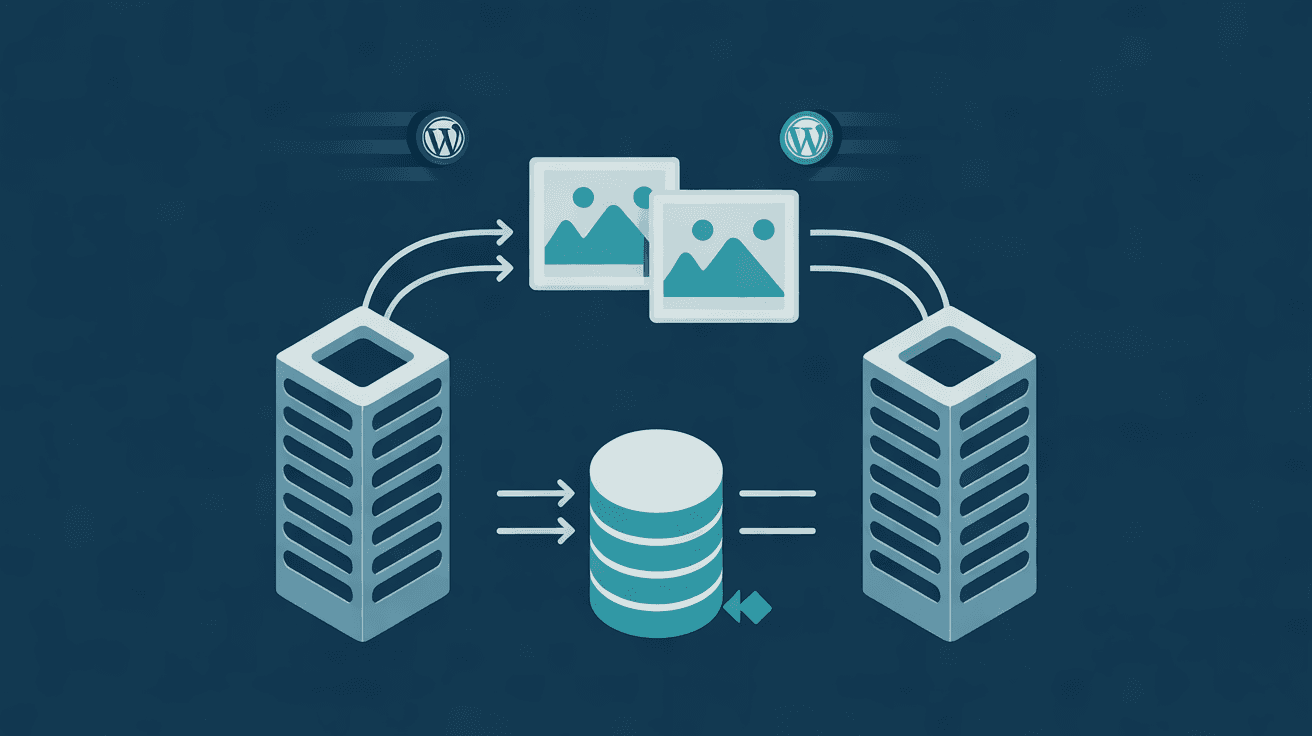
A WordPress migration can look successful while recent orders remain in the old database or uploads and plugin settings are missing. This guide covers one site, unchanged domain and URLs, and SSH access to both the old server and the new VPS. It walks through complete backups, file/database synchronization, tests before changing DNS, cutover and rollback. Without SSH on shared hosting, use its control panel for exports while keeping the same acceptance checks. Multisite, domain changes and high-volume commerce require a separate migration plan.
The official WordPress migration instructions require files and database when moving to another server at the same URLs. Update wp-config.php if database credentials change. The XML from Tools → Export is not a complete backup: verify themes, plugins, uploads, users, settings and plugin-owned tables too.
Keep this checklist off the server. Do not include passwords in support tickets or chat:
| Item | Record before migration | Consequence if missed |
|---|---|---|
| Site URLs | home, siteurl, www prefix and HTTP/HTTPS | Redirect loops or mixed-content images |
| Data | Database name/prefix, total size and wp-content/uploads size | Missing orders, comments or images |
| Runtime | PHP/MySQL/MariaDB versions, extensions and Nginx/Apache rewrites | Plugin failures or permalink 404s |
| External dependencies | Object storage, SMTP, payments, webhooks, cron and CDN | Healthy homepage with broken business functions |
| DNS | A, AAAA, www, proxy mode and TTL | Some visitors keep reaching the old server |
Budget disk for site files, database, one temporary local backup and growth. A small brochure site can start its assessment at 2 vCPU, 4 GB RAM and 40 GB SSD; image-heavy sites and WooCommerce need sizing against storage and peak load. These are planning figures, not official WordPress minimums. Install the web server, PHP-FPM, database and WP-CLI, and verify plugin/PHP compatibility. Expose 80/443 and SSH restricted to appropriate sources; keep database ports private. The WordPress Docker and Caddy guide can help prepare a target stack, but the examples here use native PHP-FPM and a local database. Containers need their own paths and docker compose exec equivalents.
Examples use /var/www/example.com on the old server, /srv/www/example.com on the new VPS, domain example.com, destination NEW_IP and SSH user deploy. Replace these before running commands. Do not overwrite existing directories or permissions without checking the site's actual deployment.
On the old server, verify the path and database connection. wp db export reads credentials from wp-config.php and invokes mysqldump; WP-CLI documentation explains options such as --single-transaction. Put SQL in the deployment user's private directory, never under the document root:
wp core is-installed --path=/var/www/example.com
wp option get home --path=/var/www/example.com
wp option get siteurl --path=/var/www/example.com
du -sh /var/www/example.com /var/www/example.com/wp-content/uploads
umask 077
mkdir -p /home/deploy/wp-migration
wp db export /home/deploy/wp-migration/preflight.sql \
  --single-transaction --path=/var/www/example.com
test -s /home/deploy/wp-migration/preflight.sql
tar -C /var/www -czf /home/deploy/wp-migration/files-preflight.tar.gz example.com
tar -tzf /home/deploy/wp-migration/files-preflight.tar.gz | head
sha256sum /home/deploy/wp-migration/preflight.sql \
  /home/deploy/wp-migration/files-preflight.tar.gz
Copy both archives and checksums to independent storage and actually test extraction and database restoration. test -s proves only that a file is nonempty. For orders, subscriptions or forms, inventory external writers and choose a quiet business window. Mailboxes, DNS configuration and domain registration generally live outside the WordPress files/database and need separate handling.
On the new VPS, create an empty site directory and database without running the WordPress installer. Permit utf8mb4. Replace database credentials before executing SQL; the example localhost corresponds to DB_HOST=localhost in wp-config.php. Confirm the destination database is empty so importing cannot overwrite another application's data.
sudo install -d -o deploy -g www-data -m 2750 /srv/www/example.com
sudo mysql <<'SQL'
CREATE DATABASE wordpress_live CHARACTER SET utf8mb4 COLLATE utf8mb4_unicode_ci;
CREATE USER 'wordpress_live'@'localhost' IDENTIFIED BY 'REPLACE_WITH_LONG_RANDOM_PASSWORD';
GRANT ALL PRIVILEGES ON wordpress_live.* TO 'wordpress_live'@'localhost';
SQL
Pre-sync from the old server so the final window only transfers changes. --no-owner --no-group avoids copying old numeric ownership. The example intentionally avoids --delete, which could delete destination files after a path mistake. Large sites can repeat pre-sync before maintenance. Restrict the new site's visitors to testers so nobody writes to the new database early.
rsync -a --no-owner --no-group --exclude='.maintenance' \
  /var/www/example.com/ deploy@NEW_IP:/srv/www/example.com/
Confirm wp-config.php arrived, then change only database connection settings. Do not regenerate WordPress salts or replace domain text throughout the SQL. Set ownership for the new web user and permit writing only where uploads or required caches need it:
sudo chown -R deploy:www-data /srv/www/example.com
sudo find /srv/www/example.com -type d -exec chmod 755 {} \;
sudo find /srv/www/example.com -type f -exec chmod 644 {} \;
sudo chmod 640 /srv/www/example.com/wp-config.php
sudo find /srv/www/example.com/wp-content/uploads -type d -exec chmod 2775 {} \;
sudo find /srv/www/example.com/wp-content/uploads -type f -exec chmod 664 {} \;
These modes suit an ordinary single site. If plugins use wp-content/cache or custom directories, grant required write access individually; avoid chmod -R 777. Adjust the document root, PHP-FPM socket and permalink rewrites, test the web configuration, and keep the database on localhost or a controlled network.
The key rule is one writable database at a time. Stop payment callbacks, external queues and system cron that can bypass a maintenance page, then enable maintenance on the old server. The WP-CLI maintenance commands do not themselves stop every external database writer.
wp maintenance-mode activate --path=/var/www/example.com
wp maintenance-mode status --path=/var/www/example.com
umask 077
wp db export /home/deploy/wp-migration/final.sql \
  --single-transaction --path=/var/www/example.com
test -s /home/deploy/wp-migration/final.sql
rsync -a --no-owner --no-group --exclude='.maintenance' --exclude='wp-config.php' \
  /var/www/example.com/ deploy@NEW_IP:/srv/www/example.com/
scp /home/deploy/wp-migration/final.sql \
  deploy@NEW_IP:/home/deploy/wp-migration-final.sql
Stop direct database-writing processes before exporting. --single-transaction does not freeze all business writes and is not suitable for every storage engine. Preserve the complete old snapshot; do not delete the old database or VPS yet.
On the new VPS, verify wp-config.php uses the destination database before importing. wp db import does not create the database, so create it first. Move the imported SQL to controlled backup storage and remove unnecessary temporary copies.
chmod 600 /home/deploy/wp-migration-final.sql
wp db import /home/deploy/wp-migration-final.sql --path=/srv/www/example.com
wp db check --path=/srv/www/example.com
wp core is-installed --path=/srv/www/example.com
wp option get home --path=/srv/www/example.com
wp option get siteurl --path=/srv/www/example.com
home and siteurl should retain their original production values. Do not replace URLs for an unchanged-domain migration. If domain, scheme or installation path also changes, back up the new database, inspect a wp search-replace '旧地址' '新地址' --dry-run --skip-columns=guid run, then remove --dry-run to apply. WP-CLI search-replace handles PHP serialized values; direct SQL REPLACE() can corrupt them.
Check PHP logs, database connectivity, homepage, posts, images, admin login and key business pages. If the destination already has a valid certificate obtained through DNS-01 or another method, bypass public DNS locally:
curl -I --resolve example.com:443:NEW_IP https://example.com/
curl -I --resolve example.com:443:NEW_IP https://example.com/wp-login.php
--resolve changes only this request's destination; TLS still verifies example.com. A successful curl -k is not HTTPS acceptance without a valid certificate. Obtain one in advance through DNS-01 or plan a brief post-cutover issuance window. Behind a CDN or proxy, check origin HTTPS and redirect loops caused by Flexible SSL-type settings.
Review DNS at least one old TTL period beforehand. Lower DNS-only A/AAAA TTLs within provider limits. Cloudflare proxied records use automatic 300-second TTL, which you cannot manually shorten, and local caches can last longer. Check www, AAAA and CDN origin settings as well as A.
- Keep the old site in maintenance; verify the final SQL and final incremental files reached the new site.
- Point A/AAAA or the CDN origin to the new VPS without changing unrelated MX records.
- Check DNS and pages from several networks with
dig +short example.com A,dig +short example.com AAAAandcurl -I https://example.com/. With proxying,digreturns edge addresses; inspect the origin in the CDN dashboard. - Verify HTTPS, login, uploads, forms, payment sandbox or a controlled small payment, and callbacks. Remove destination testing restrictions and enable writes. Stop old scheduled tasks before starting their replacements.
DNS cutover is not guaranteed zero downtime: resolvers, browsers and CDN caches update at different times. Retain the old VPS at least 48–72 hours for residual traffic and recovery. Track where each new order, payment or membership write lands; do not let both databases accept business transactions.
If failure occurs before new writes, preserve the old snapshot, restore DNS/CDN routing to the old server, disable its maintenance and investigate extensions, rewrites and database permissions. After new orders, comments or uploads, first freeze the new site and export its database/new files. DNS-only rollback would lose post-cutover data. Plan reconciliation or restoration before choosing the old site or repairing the new one.
| Symptom | Check first |
|---|---|
| Error establishing a database connection | DB_HOST in destination wp-config.php, database credentials and service |
| Homepage works but posts return 404 | Nginx/Apache permalink rules; whether .htaccess applies to this stack |
| Missing images or failed uploads | Completeness of wp-content/uploads, write permissions and object storage |
| HTTPS redirect loop | Site URLs, forwarded HTTPS headers, CDN TLS mode and redirect rules |
| Plugin admin returns 500 | PHP compatibility, extensions, logs and wp-content permissions; keep errors off public pages |
| Email or scheduled tasks fail | SMTP, mail DNS, system cron and WP-Cron responsibilities |
A homepage 200 is insufficient. Sample recent posts/images, login/logout, uploads, forms and callbacks. Compare post/order counts and final SQL time, then observe 4xx/5xx, PHP-FPM and database logs for 24 hours. Confirm off-server backups and successful restore drills before retiring the old VPS. See the general low-downtime VPS migration checklist for broader service moves.
Must WordPress be reinstalled? No installer is needed for the same-domain move. Prepare a compatible stack, copy files/database and update database credentials.
Is wp-content enough? No. Include the database, wp-config.php, custom code, web/cron configuration and external storage/email dependencies.
Why do visitors still see the old site? Cached destinations in resolvers, browsers or CDN; also check AAAA and www. Keep old-site maintenance until residual traffic clears.
Should every database URL be changed? Not when domain, scheme and path remain the same. For changed URLs, use a serialization-aware tool, back up and dry-run first.