
VPS Tutorials
Deploy WordPress on a VPS (2026): Docker, MariaDB, Caddy HTTPS, Backups and Security Hardening
Build a long-running WordPress site on a VPS from scratch: deploy WordPress and MariaDB with Docker Compose, configure automatic HTTPS with Caddy, and fully handle SMTP email, database and file backups, update rollback, security hardening and common failures.
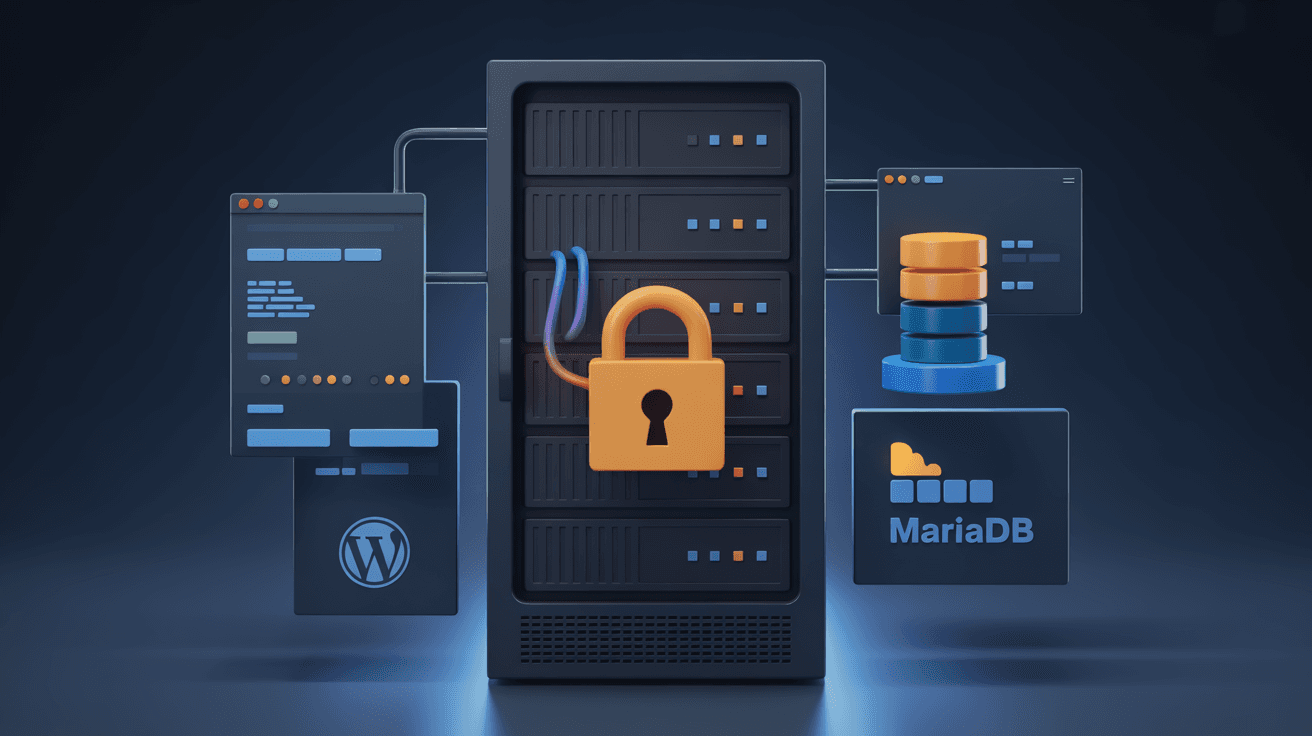
If you want a blog, a corporate website or a content-driven independent site, WordPress is still one of the most common choices on a VPS, and its search demand remains among the most stable. What really keeps a site running reliably over the long term is not opening the installation wizard, but configuring database persistence, HTTPS, updates, backups, email and security boundaries all at once.
This article uses Ubuntu 24.04 LTS, Docker Compose, the official WordPress image, MariaDB and Caddy as an example to deploy a single-site production environment from scratch. The example places WordPress and the database on the Docker internal network, the application listens only on a local port, and Caddy handles public HTTPS.
WordPress specifications depend on the theme, plugins, images and concurrency. Do not buy a machine based only on "it can be installed":
| Use case | Recommended specs | Notes |
|---|---|---|
| Personal blog, corporate showcase site | 2 cores, 4GB, 50GB SSD | Suitable for a small number of plugins and low-to-medium traffic |
| WooCommerce or content site | 4 cores, 8GB, 100GB NVMe | Leaves headroom for PHP, MariaDB and caching |
| Multisite or high traffic | 4-8 cores, 8-16GB minimum | Requires load testing, object storage and separate database planning |
Prepare a domain in advance, for example www.example.com, and point the A / AAAA records to the VPS. The firewall should only open SSH, 80 and 443; do not expose MariaDB's port 3306 to the public internet.
Install Docker Engine and Compose v2 from the official Docker repository, and confirm the commands are available:
docker --version
docker compose version
Create a dedicated directory and restrict configuration file permissions:
sudo mkdir -p /opt/wordpress/backups
sudo chown -R "$USER":"$USER" /opt/wordpress
cd /opt/wordpress
Generate a database password:
openssl rand -hex 32
openssl rand -hex 32
nano .env
chmod 600 .env
Write /opt/wordpress/.env:
MYSQL_ROOT_PASSWORD=替换为第一组随机值
MYSQL_PASSWORD=替换为第二组随机值
WORDPRESS_DB_NAME=wordpress
WORDPRESS_DB_USER=wordpress
WORDPRESS_DB_HOST=db:3306
WORDPRESS_DEBUG=0
Do not commit .env to Git, and do not expose the password in chats, tickets or screenshots.
Create /opt/wordpress/compose.yaml:
services:
  db:
    image: mariadb:11.4
    container_name: wordpress-db
    restart: unless-stopped
    env_file:
      - .env
    environment:
      MARIADB_ROOT_PASSWORD: "${MYSQL_ROOT_PASSWORD:?set MYSQL_ROOT_PASSWORD in .env}"
      MARIADB_DATABASE: "${WORDPRESS_DB_NAME:?set WORDPRESS_DB_NAME in .env}"
      MARIADB_USER: "${WORDPRESS_DB_USER:?set WORDPRESS_DB_USER in .env}"
      MARIADB_PASSWORD: "${MYSQL_PASSWORD:?set MYSQL_PASSWORD in .env}"
    volumes:
      - wordpress_db:/var/lib/mysql
    healthcheck:
      test: ["CMD-SHELL", "healthcheck.sh --connect --innodb_initialized"]
      interval: 10s
      timeout: 5s
      retries: 20
      start_period: 30s
    command:
      - --character-set-server=utf8mb4
      - --collation-server=utf8mb4_unicode_ci
      - --max-allowed-packet=64M
    logging:
      driver: json-file
      options:
        max-size: "10m"
        max-file: "3"

  wordpress:
    image: wordpress:6-php8.3-apache
    container_name: wordpress
    restart: unless-stopped
    depends_on:
      db:
        condition: service_healthy
    ports:
      - "127.0.0.1:8080:80"
    env_file:
      - .env
    environment:
      WORDPRESS_DB_HOST: "${WORDPRESS_DB_HOST:?set WORDPRESS_DB_HOST in .env}"
      WORDPRESS_DB_USER: "${WORDPRESS_DB_USER:?set WORDPRESS_DB_USER in .env}"
      WORDPRESS_DB_PASSWORD: "${MYSQL_PASSWORD:?set MYSQL_PASSWORD in .env}"
      WORDPRESS_DB_NAME: "${WORDPRESS_DB_NAME:?set WORDPRESS_DB_NAME in .env}"
      WORDPRESS_DEBUG: "${WORDPRESS_DEBUG:-0}"
      WORDPRESS_CONFIG_EXTRA: |
        if (isset($$_SERVER['HTTP_X_FORWARDED_PROTO']) && strpos($$_SERVER['HTTP_X_FORWARDED_PROTO'], 'https') !== false) {
          $$_SERVER['HTTPS'] = 'on';
        }
        define('FORCE_SSL_ADMIN', true);
    volumes:
      - wordpress_data:/var/www/html
    healthcheck:
      test: ["CMD-SHELL", "php -r '$$c=@fsockopen(\"127.0.0.1\",80,$$e,$$s,5); exit($$c ? 0 : 1);'"]
      interval: 30s
      timeout: 10s
      retries: 10
      start_period: 60s
    logging:
      driver: json-file
      options:
        max-size: "10m"
        max-file: "3"

volumes:
  wordpress_db:
    name: wordpress_db
  wordpress_data:
    name: wordpress_data
WordPress binds only to 127.0.0.1:8080, and MariaDB has no ports configuration, so the database is not directly exposed to the public internet. Before a formal upgrade, pin the image series and check the compatibility of WordPress, PHP and MariaDB; do not use latest long term.
Start and check:
docker compose config >/dev/null
docker compose pull
docker compose up -d
docker compose ps
docker compose logs --tail=100 wordpress db
curl -I http://127.0.0.1:8080/wp-login.php
Once both services are healthy, configure the reverse proxy. Do not run docker compose down -v during the first initialization; it deletes the database volume.
Edit /etc/caddy/Caddyfile:
www.example.com {
    encode zstd gzip
    reverse_proxy 127.0.0.1:8080

    request_body {
        max_size 64MB
    }
}
Check and reload Caddy:
sudo caddy validate --config /etc/caddy/Caddyfile
sudo systemctl reload caddy
curl -I https://www.example.com/wp-login.php
Caddy automatically obtains and renews certificates and forwards X-Forwarded-Proto. The WORDPRESS_CONFIG_EXTRA in Compose lets WordPress correctly recognize external HTTPS. The "Site Address" and "WordPress Address" in the admin panel should still use https://www.example.com, otherwise you will get mixed content, login loops or constant redirects in the admin panel. For reverse proxy details, see Complete guide to Caddy reverse proxy on a VPS.
Open https://www.example.com in a browser and fill in the site title, administrator username, strong password and dedicated email. Do not set the administrator username to admin, and do not use the same password as your VPS or email.
Handle these settings immediately after installation:
- Confirm "Search engine visibility" matches your launch plan;
- Delete default posts, pages, themes and unused plugins;
- Set permalinks to "Post name", then test whether old links need redirects;
- Set the correct site timezone, language and media thumbnail sizes;
- Add a site privacy policy page in the privacy settings;
- Enable two-factor authentication for the administrator account (when the plugin or hosting service supports it).
Do not install dozens of "optimization" plugins from the start. Every additional plugin adds PHP execution, database queries, update and security audit costs.
WordPress's default wp_mail() depends on the server's mail capability, and port 25 is restricted on many VPS, causing password resets, form notifications and order emails to be lost. Production sites should use a reliable SMTP service, configure dedicated credentials through an SMTP plugin, and test:
- Administrator password reset;
- New user invitations or registration notifications;
- Contact forms and order notifications;
- SPF, DKIM, DMARC and sender domain consistency.
Do not write your personal email master password into WordPress; prefer app-specific passwords or a dedicated SMTP account.
The database stores posts, users, settings and orders; the wordpress_data volume stores themes, plugins, uploaded images and wp-config.php. Backing up only the database means media files are lost after restore; backing up only the files leaves posts and user data incomplete.
Back up the database:
cd /opt/wordpress
mkdir -p backups
docker compose exec -T db sh -c \
  'mariadb-dump --single-transaction --quick --routines --triggers \
  -u root -p"$MARIADB_ROOT_PASSWORD" "$MARIADB_DATABASE"' \
  | gzip > "backups/wordpress-db-$(date +%F-%H%M).sql.gz"
Back up the WordPress file volume:
docker run --rm \
  -v wordpress_data:/source:ro \
  -v "$PWD/backups:/backup" \
  alpine sh -c 'tar -C /source -czf /backup/wordpress-data.tar.gz .'
Copy at least one backup to another machine or object storage, restrict access permissions and verify regularly. You can refer to VPS backup and restore drill to establish an encrypted, off-site and restore-acceptance process.
When restoring, first stop WordPress writes, restore the file volume and database, then start the application. Full acceptance must include administrator login, posts, images, permalinks, media uploads and email, not just whether the homepage opens.
WordPress core, themes, plugins and the database can all undergo structural changes. Back up before updating and record the current versions:
docker compose exec wordpress php -r \
  'include "/var/www/html/wp-includes/version.php"; echo $wp_version, PHP_EOL;'
docker compose images
docker compose ps
Upgrade container images:
docker compose config >/dev/null
docker compose pull
docker compose up -d
docker compose ps
docker compose logs --tail=200 wordpress
After updating, verify login, post publishing, media uploads, form emails and front-end caching. Upgrade plugins a few at a time; when you hit a white screen or 500, roll back the most recent change first rather than updating all plugins at once.
Do not use docker compose down -v to solve WordPress errors, and do not delete the wordpress_data or wordpress_db volumes directly without a backup.
At a minimum you should:
- Use SSH keys and a regular sudo user, and only allow necessary ports in the VPS firewall;
- Use strong passwords and two-factor authentication for the WordPress administrator;
- Delete deactivated plugins and themes, and do not install cracked plugins of unknown origin;
- Restrict
/xmlrpc.php, the login endpoint and admin brute-force attempts, using a WAF or rate limiting when necessary; - Regularly update WordPress, PHP, themes and plugins, keeping a recoverable backup before updating;
- Do not map the MariaDB port to the public internet, and do not leak database passwords in posts, logs or tickets;
- Set up monitoring for Docker logs, disk space and HTTPS certificates.
If the site has already become slow, then troubleshoot PHP-FPM, OPcache, Redis, caching and slow queries according to What to do when WordPress on a VPS is slow. Do not treat caching plugins as a universal fix for insufficient database or host resources.
docker compose ps
curl -I http://127.0.0.1:8080/wp-login.php
docker compose logs --tail=200 wordpress
sudo journalctl -u caddy --no-pager -n 100
Confirm the WordPress container is still running, the port binding is 127.0.0.1:8080, and check whether the container was OOM Killed due to insufficient memory.
The database hostname within the Compose network is db, not localhost. Check whether the username, password, database name and existing data volume in .env are consistent:
docker compose logs --tail=200 db
docker compose exec wordpress getent hosts db
docker compose config
Changing .env does not automatically change the password of an already initialized MariaDB user; in this case, use database management commands to change it in sync, or restore from a backup, rather than deleting the volume and starting over.
Confirm Caddy terminates HTTPS, both WordPress site URLs are HTTPS, and clear the caching plugin and browser cookies. Do not configure conflicting SSL modes and redirect rules at the same time with a CDN such as Cloudflare.
First check Caddy's request_body max_size, then check PHP's upload_max_filesize, post_max_size and the WordPress memory limit. Before raising the limits, confirm disk and backup capacity to avoid a single upload exhausting VPS space.
- WordPress listens only on
127.0.0.1:8080, and MariaDB is not exposed to the public internet - Domain, Caddy HTTPS and WordPress site URLs are all consistent
- Administrator strong password, two-factor authentication and least privilege are configured
- SMTP password reset, form or order email tests succeed
- Both the database and
wordpress_datahave off-site backups - A restore drill has been completed, verifying posts, images and login
- Versions are pinned and backed up before updates, and 502, 500 and disk space are checked after updates
- Default content, deactivated plugins and unneeded themes have been deleted
After completing these steps, this WordPress setup has a maintainable production foundation. Docker isolates the application, Caddy handles HTTPS, MariaDB handles data persistence, and backups, email and security updates determine whether the site can truly run long term.