
VPS Tutorials
Self-host wg-easy 15: WireGuard, Caddy HTTPS and recovery
Deploy wg-easy 15 with Docker Compose and Caddy. Restrict panel access, configure trusted proxy metadata and device keys, verify IPv4/IPv6/DNS routing, and back up complete state for isolated restore tests and safe upgrades.
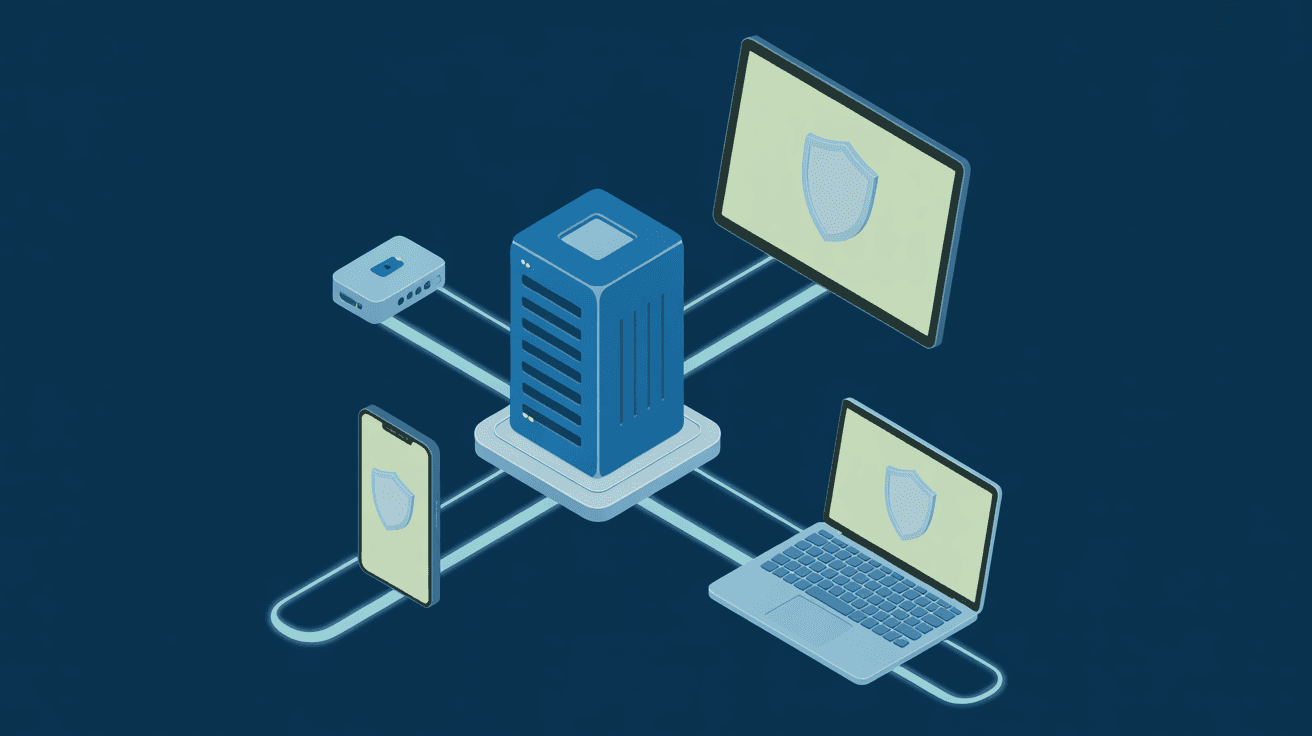
wg-easy groups WireGuard device configurations, QR codes and administration in one interface. You still need a protected HTTPS panel, working UDP ingress, routing and recoverable state. This guide uses wg-easy 15, Docker Compose and Caddy for personal devices or small remote-access deployments with an IPv4 tunnel.
The source configuration was assembled from official documentation; it does not report real VPS throughput or client interoperability testing, and this edition does not turn that into a new test claim. Check port/subnet conflicts before adding it to a VPS with WireGuard already installed. For manual key management see the WireGuard basics.
Evaluate 1 vCPU, 1 GB RAM and 10 GB SSD for a few personal devices; start around 2 GB when sharing with other applications. These examples do not guarantee bandwidth or a user count. CPU, shared links, loss and client connectivity matter.
Confirm kernel WireGuard support, container NET_ADMIN, required inbound UDP and adequate transfer allowance. KVM often offers more control over kernel/modules; restricted container VPS plans need an explicit capability check.
| Address | Purpose | Value |
|---|---|---|
wg-admin.example.com | Browser administration | A record to public VPS IPv4 |
vpn.example.com | Client Endpoint | A record to public VPS IPv4 |
| Administrator public IPv4 | Panel allowlist | Your current outbound address, not the VPS address |
Use direct DNS for both names; this example has no CDN/proxy in front. Remove incorrect AAAA records for an IPv4-only deployment. WireGuard UDP goes directly to the VPS; Caddy handles panel HTTPS only.
The example pins ghcr.io/wg-easy/wg-easy:15. 15 follows that major family; the source notes that latest can refer to an older family. Verify current tag policy in Getting Started, record deployed digests and back up before updates.
v15 moves many old settings into the interface. Do not copy an old WG_HOST/PASSWORD_HASH environment wholesale. Retain wg0.json and the original variables for the v14-to-v15 migration wizard; migration is not permission to feed upgraded state back into v14.
Use a root shell on Ubuntu 24.04 with Docker Engine/Compose installed; see the Docker guide:
uname -r
docker version
docker compose version
modprobe wireguard
ss -lntup
ip route
docker network ls
install -d -m 700 /opt/wg-easy
cd /opt/wg-easy
install -d -m 700 wireguard caddy-data caddy-config backups
Check TCP 80/443 and UDP 51820. 10.42.42.0/24 must not overlap Docker, home or corporate networks; inspect with docker network inspect and update the subnet/fixed IP together when needed. Also check the WireGuard client subnet selected during setup.
Save /opt/wg-easy/compose.yaml:
name: wg-easy
services:
  wg-easy:
    image: ghcr.io/wg-easy/wg-easy:15
    environment:
      INSECURE: "false"
      DISABLE_IPV6: "true"
    volumes:
      - ./wireguard:/etc/wireguard
      - /lib/modules:/lib/modules:ro
    ports:
      - "51820:51820/udp"
    cap_add:
      - NET_ADMIN
      - SYS_MODULE
    sysctls:
      net.ipv4.ip_forward: "1"
      net.ipv4.conf.all.src_valid_mark: "1"
    networks:
      wg:
        ipv4_address: 10.42.42.42
    restart: unless-stopped
    logging:
      driver: json-file
      options:
        max-size: "10m"
        max-file: "3"

  caddy:
    image: caddy:2-alpine
    ports:
      - "80:80/tcp"
      - "443:443/tcp"
    volumes:
      - ./Caddyfile:/etc/caddy/Caddyfile:ro
      - ./caddy-data:/data
      - ./caddy-config:/config
    networks:
      - wg
    restart: unless-stopped
    logging:
      driver: json-file
      options:
        max-size: "10m"
        max-file: "3"

networks:
  wg:
    driver: bridge
    ipam:
      config:
        - subnet: 10.42.42.0/24
This adapts the official Compose example for IPv4, removes host 51821 publication and persists state in host directories. NET_ADMIN and SYS_MODULE are powerful capabilities: use trusted images and protect host access; do not add privileged: true. When the host supplies the module and your supported configuration permits it, avoid unnecessary module-loading capability.
Current documentation also defines TRUSTED_PROXIES for original host/request metadata behind a proxy. Add an explicit Caddy address and trust only that address before starting. Apply these changes to the corresponding sections while retaining the other settings; this fragment is not a replacement for the entire file:
services:
  wg-easy:
    environment:
      TRUSTED_PROXIES: "10.42.42.43"
  caddy:
    networks:
      wg:
        ipv4_address: 10.42.42.43
If you change the Docker subnet, update both addresses and the trust setting together. Recreate the containers after changing network/environment configuration.
DISABLE_IPV6=true disables tunnel/client IPv6 configuration, as described in optional settings. It does not disable the device's original IPv6 connectivity.
Create /opt/wg-easy/Caddyfile, replacing the domain and 198.51.100.25/32 with the administrator's real public IPv4:
wg-admin.example.com {
    @outside not remote_ip 198.51.100.25/32
    respond @outside "Forbidden" 403
    reverse_proxy wg-easy:51821
}
The documentation address is not usable unchanged. Keep the allowlist for initial setup and, if appropriate, ongoing management. Update it through independent SSH when networks change. It restricts panel HTTP, not client UDP. With an extra proxy, remote_ip identifies a different peer; review Caddy matchers rather than trusting arbitrary forwarded addresses.
Allow TCP 80/443 and UDP 51820 in host/cloud rules, preserving SSH access. Do not open TCP 51821 or substitute a TCP-only 51820 rule. Validate actual Docker firewall behavior; UFW output alone is insufficient.
After DNS is correct:
cd /opt/wg-easy
docker compose config --quiet
docker compose pull
docker compose run --rm --no-deps caddy \
  caddy validate --config /etc/caddy/Caddyfile --adapter caddyfile
docker compose up -d
docker compose ps
docker compose logs --tail=100 caddy
docker compose logs --tail=100 wg-easy
Open https://wg-admin.example.com from the allowed computer. Caddy automatic HTTPS obtains and renews a public certificate; tls internal is for an internal trust model, not this public-domain example. See the wg-easy Caddy example.
Retain INSECURE=false and browser HTTPS rather than exposing plaintext administration. If another proxy owns 80/443, integrate the site there instead of starting a conflicting second proxy. Follow the Caddy guide.
Create an administrator with a long unique password and select no old configuration for a fresh installation. Host is vpn.example.com, Port 51820: it is the client's actual endpoint, without https:// or a Docker-internal address. See setup fields.
Enable TOTP in Account, verify a code and store the documented recovery information securely; see 2FA. Panel 2FA protects management login, not every WireGuard handshake.
Create one peer per device, for example phone-main and laptop-work. Use the official client to scan the mobile QR or import the desktop configuration. Both contain private keys: do not share them in public tickets/screenshots. Disable/delete a lost device's peer; avoid sharing one configuration across devices.
Inspect handshakes:
cd /opt/wg-easy
docker compose exec wg-easy wg show
Check a recent handshake and byte counts, then access the intended service from the client. A working panel proves HTTPS, not UDP connectivity. Test both Wi-Fi and mobile data where relevant.
For a particular controlled service, route only the required IP/subnet. 0.0.0.0/0 is for routing all IPv4 through the VPS. Targets still need server reachability, forwarding and a return route; editing AllowedIPs does not create them.
AllowedIPs is not server authorization because users can change their local configuration. Use a supported per-client firewall or equivalent server rules; review client settings and test both permitted and denied access.
This example has no IPv6 tunnel exit. Native device IPv6 may bypass it. For full-tunnel requirements, verify IPv4, IPv6 and DNS paths, then use supported leak-blocking settings or a complete dual-stack design. Adding ::/0 alone does not provide IPv6 routing.
Use a reachable DNS resolver; internal DNS needs routes and firewall permission too. Separate failed IP connectivity from failed DNS before adjusting MTU.
/etc/wireguard contains more than a hand-written tunnel file. Preserve its entire mounted directory, Compose, Caddy configuration and image identities. The consistent archive below stops all tunnels: use SSH that does not depend on this VPN and retain provider-console access.
Save /opt/wg-easy/backup.sh:
#!/usr/bin/env bash
set -euo pipefail
umask 077
cd /opt/wg-easy
backup_file="backups/wg-easy-$(date -u +%Y%m%dT%H%M%SZ).tar.gz"
test ! -e "$backup_file"
test ! -e "${backup_file}.partial"

{
  for service in wg-easy caddy; do
    image_id=$(docker compose images -q "$service")
    test -n "$image_id"
    printf '%s\n' "$service"
    docker image inspect "$image_id" --format '{{json .RepoDigests}}'
  done
} > image-digests.txt

trap 'docker compose up -d' EXIT
docker compose down
tar -czf "${backup_file}.partial" \
  compose.yaml Caddyfile image-digests.txt wireguard caddy-data caddy-config
tar -tzf "${backup_file}.partial" > /dev/null
mv "${backup_file}.partial" "$backup_file"
sha256sum "$backup_file" > "${backup_file}.sha256"
docker compose up -d
trap - EXIT
printf 'Backup ready: %s\n' "$backup_file"
chmod 700 /opt/wg-easy/backup.sh
/opt/wg-easy/backup.sh
docker compose ps
It uses down/up, avoiding down -v. The failure trap attempts startup, but verify containers and one handshake afterwards. A readable archive is not a completed service-restoration test. Verify that recorded RepoDigests are present and retrievable; a local image with an empty digest listing needs an independently retained image artifact/identity.
Encrypt backups containing private keys, account data and certificates, copy them offsite and store decryption credentials separately. Include device additions/deletions and routing changes in the backup schedule. Recovery from old state can resurrect revoked peers; reapply revocations before exposing a restored service.
On a clean restore VPS, install the same Docker environment. Place the trusted archive and .sha256 in /root/wg-restore/backups/, keeping filenames and directory structure. Replace timestamp placeholders:
cd /root/wg-restore
backup_file='backups/wg-easy-YYYYMMDDTHHMMSSZ.tar.gz'
sha256sum -c "${backup_file}.sha256"
tar -tzf "$backup_file"
restore_dir=$(mktemp -d /opt/wg-easy-restore.XXXXXX)
tar -xzf "$backup_file" -C "$restore_dir"
cd "$restore_dir"
docker compose config --quiet
The source's relative-path label backups/文件名 means backups/
Set both image references to the corresponding digests in image-digests.txt, check ports/networks, then start. For production takeover update DNS and administrator allowlist. A changed endpoint may require client configuration updates or reconnecting to resolve the domain again.
docker compose up -d
docker compose logs --tail=100 wg-easy
docker compose exec wg-easy wg show
Use an isolated VPS, test domain and temporary peers for drills. Verify account login, device list, handshakes and target access; do not let test and production accept the same peers simultaneously. Follow the restore drill guide.
Before an upgrade, make a recoverable backup and retain the old digests. Review the target release, pull/recreate within a maintenance window and explicitly update pinned digests. Rolling back may require the old image and pre-upgrade state, because older versions may not read migrated data.
Check the Caddy allowlist: full-tunnel use can change the browser's public source address. Update/reload through independent SSH instead of allowing every source.
Check endpoint DNS, UDP port, cloud rules and logs. Compare another controlled client network when UDP is restricted. TCP probes do not prove UDP 51820 reachability.
Check routes, forwarding, NAT, service bind and DNS in order. Inspect docker compose exec wg-easy ip route because the interface lives in the container; the host may not have wg0. Investigate path MTU only when evidence points there and retest changes.
If necessary, evaluate a 25-second Persistent Keepalive using WireGuard Quick Start. It adds periodic traffic and is not required for every peer.
No. Peers authenticate with their own keys. Disable/delete the specific device and verify it can no longer access services. Complete configuration, handshake, access, revocation and a restore test for one device before adding the rest.